
From the Series: Video Without Vision
Videos often convey important visual information, such as actions, expressions, and context, which blind users cannot perceive without support.
This episode is for curious readers, as well as Accessibility Experts, Developers, and Testers.
In this episode, we focus on helping blind users grasp what the video contains. We explore when to use transcripts and audio descriptions, and how these support compliance with WCAG.
Sighted users can gauge a video by watching its content, reading facial expressions, and picking up contextual cues. Blind users, however, cannot perceive that information visually. They must rely on hearing or other non-visual formats.
Overview
- Does Your Video Lack Audio?
- Does Your Video Include Both Sound and Visuals?
- Achieving Method 1: Text Transcript
- Achieving Method 2: Audio Description
- Achieving Method 3: Extended Audio Description
Let’s Get Started
WCAG offers a wealth of information about how blind users need to perceive content in videos. More importantly, it provides evidence-based requirements that give us a solid foundation for implementation.
If you’ve had mixed feelings about WCAG, we encourage you to give it another look. While it may not help everyone, it contains vital guidance that supports some of the most vulnerable people with disabilities.
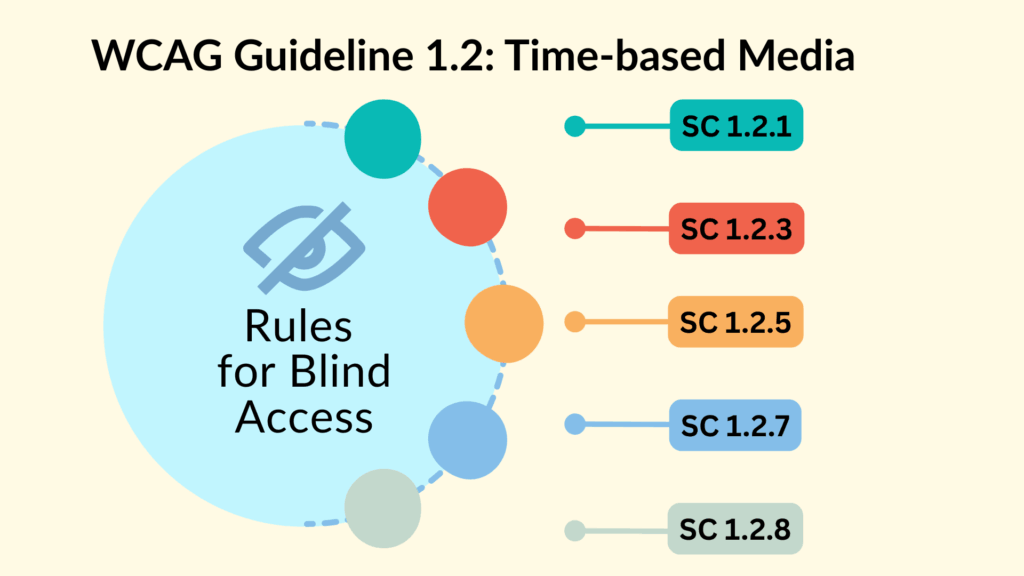
WCAG defines three levels of rules: Level A, Level AA, and Level AAA. Guideline 1.2: Time-Based Media contains nine rules, five of which directly support blind users. While most organisations aim for Level AA as a baseline, we recommend aiming higher and working toward Level AAA wherever possible.
Level A
- 1.2.1 Audio-only and Video-only (Prerecorded)
- 1.2.3 Audio Description or Media Alternative (Prerecorded)
Level AA
Level AAA
Let’s look at which rules from WCAG are relevant for your video.
Does Your Video Lack Audio?
If your video shares information without any sound, such as a video-only advert, then ‘1.2.1 Audio-only and Video-only’ applies:
Either an alternative for time-based media or an audio track is provided that presents equivalent information for prerecorded video-only content.
If your video gives short and clear information, you can use the same method from Episode 1.
If the message in your video takes more than two sentences to explain, you need to add another format that blind people can access.
This can be achieved with either:
- A Text Transcript (easier)
- An Audio Description Track (harder)
A Short and Clear Video
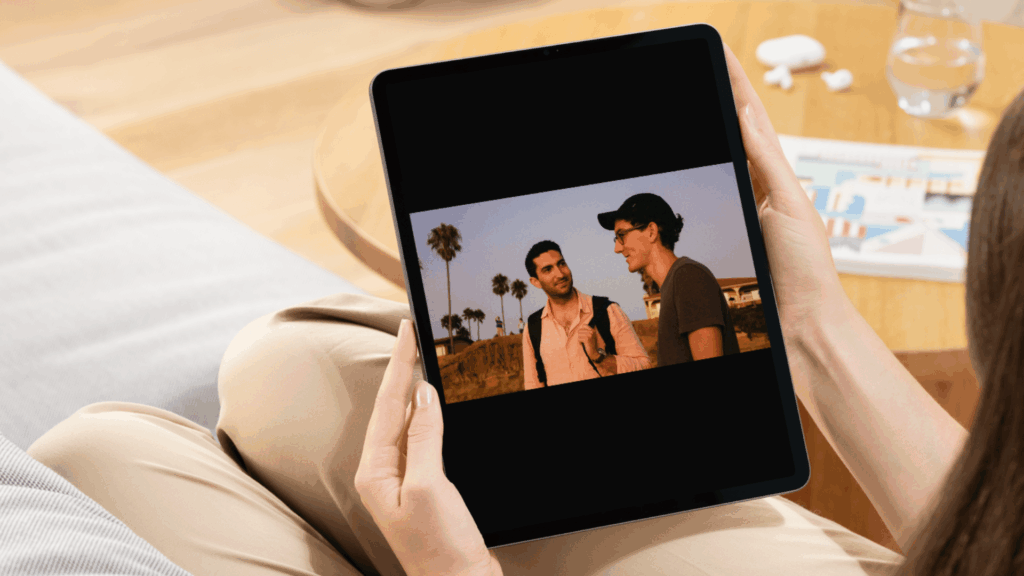
A short, clear video of palm trees designed to evoke a particular mood. This can be described using a text alternative as recommended in Episode 1.
A Video That Takes More Than Two Sentences
A longer video showing step-by-step instructions from a cooking recipe, with more detail than a brief summary. A longer video would normally show each step in detail and take more time. For the purpose of this point, we’ve kept it short.
Does Your Video Include Both Sound and Visuals?
If your video shares both sound and visuals that give important information, it may need to meet more than one rule in this guideline.
Does the Soundtrack Explain What Is Seen in the Video?
If your video’s main sound already gives all the important details, then only the highest level rules apply. These are Level AAA and go beyond what most organisations use as their standard:
If the sound in your video gives some details but leaves out important parts of the message, then extra rules will apply. These help make sure blind people can understand what the video shows:
- 1.2.3 Audio Description or Media Alternative
- 1.2.5 Audio Description
- 1.2.7 Extended Audio Description
- 1.2.8 Media Alternative
This might feel like a lot to take in, but some solutions apply to more than one rule. Once you solve one part, you may be halfway there on another.
Let’s work through each step so it all becomes clear.
Add Audio Description or a Text Alternative
Blind people need a written transcript or audio description to access any video information that is not explained by the soundtrack.
A transcript is simply a written account of what happens in the video, presented in time with the content. It may sound daunting, but you have likely seen one before. For example, selecting the Show Transcript option within a YouTube video’s description will display the transcript beside the video.
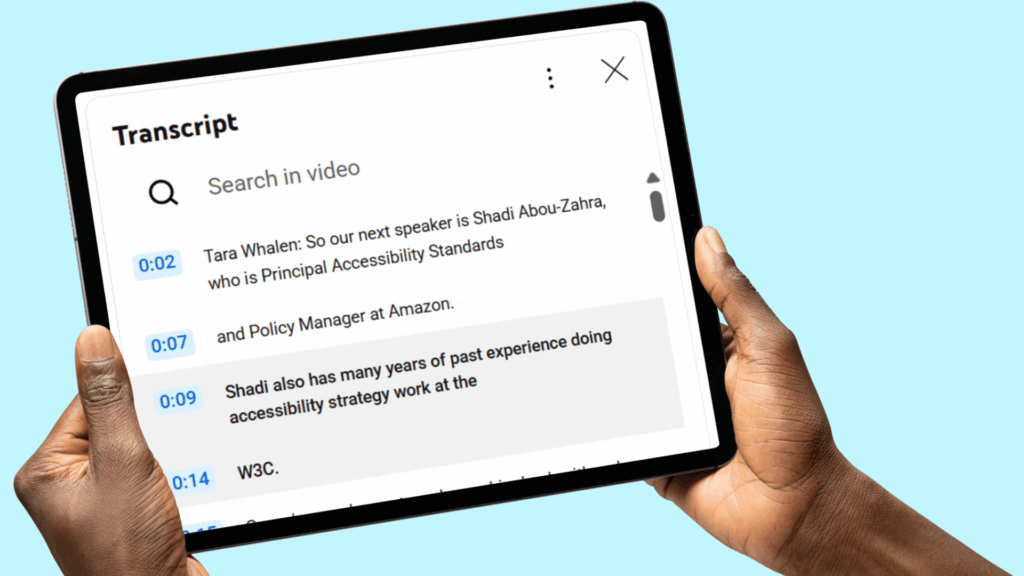
One option for videos is a text transcript, the other an audio description. If you’re wondering which to go for, we recommend a transcript for the following benefits:
- Quick to scan – readers can jump to the part they need.
- Searchable – text can be indexed, copied, and referenced.
- Efficient to produce – creating a transcript is often faster and simpler than recording audio.
- Works across more needs – useful for people who are blind, deaf, or have cognitive barriers.
- Lower data use – text loads quickly and is ideal for low bandwidth settings.
- Easy to translate – supports access for multilingual audiences.
- 1.2.8 Media Alternative – making it a recognised solution under Level AAA.
A major benefit of using audio description is that it meets 1.2.5 Audio Description.
Include Audio Description for Visual Content
If you chose to use a text transcript instead of audio description you have two options to meet this rule:
- Option 1: If the extra audio description fits smoothly into the original soundtrack and does not interrupt the experience for other users, you can add it directly.
- Option 2: Alternatively, create a separate audio description that includes the missing information from the soundtrack.
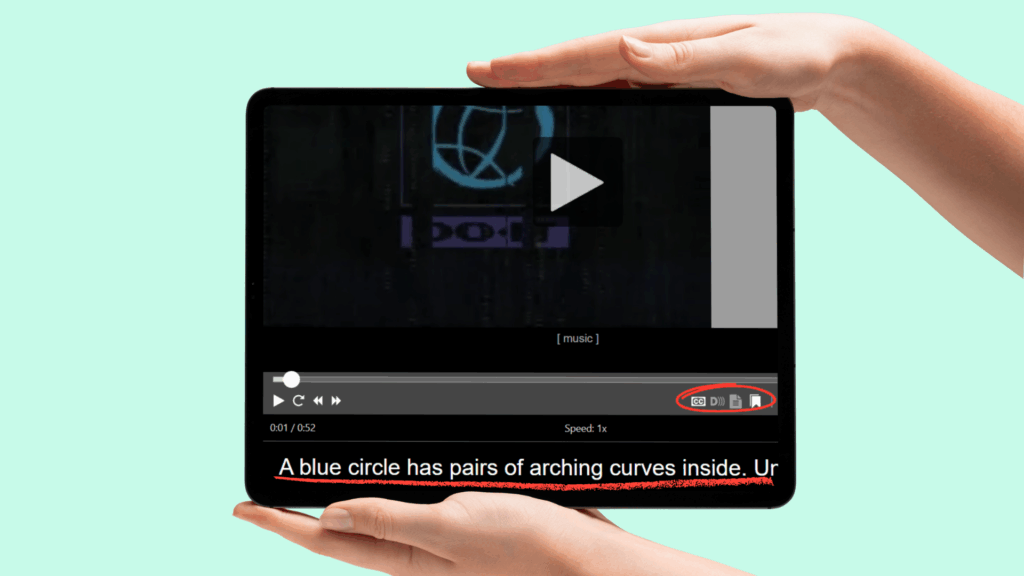
Extend the Audio to Explain Visuals Clearly
Add an extended audio description that fills in visual details not already covered by the original soundtrack or standard description.
This often means pausing the main audio to fit in extra narration that explains key actions, settings, or text shown on screen
Provide a Full Text Alternative to Video
If a transcript has not already been created, it must now be produced to include all information conveyed through both the video and audio content.
Achieving Method 1: Text Transcript
A text transcript captures both visual and spoken information from a video. Blind users can read it using a screen reader to access details that are not described in the audio.
A transcript is often made up of simple sentences arranged in time order. You can leave out decorative language and focus only on the information needed to understand the video.
Simplified example of a transcript:
<h3> Transcript of video ... </h3>
<p> ...Andrew: Accessibility is great!... </p>
<p> ...Stranger: It's helped my elderly parents manage their own banking... </p>
If you cannot place the transcript on the same page, you can put it on another page and add a link to it below the video.
Simplified example of a link to a transcript:
<a href="..."> Transcript of video... <a>Keep in mind, the transcript or link only meets the requirement if people can find it easily and in a way they would expect
Achieving Method 2: Audio Description
An audio track helps Blind people hear the visual information needed to understand the video.
If the audio track is included within the media player, there must be a clear control that lets users turn it on.
Alternatively, you can provide the audio track on a separate page and place a link to it directly below the video.
Full guidance is available on the Understanding Audio Description page for WCAG.
Simplified example of a link to the audio track:
<a href="...mp3"> Audio track of ... </a>Note: The <track> element within <video> does not work in many browsers when you use the kind attribute. This attribute tells the browser what type of track it is, like captions or descriptions, but support is limited.
If you plan to use the <track> element talk to your development team about using AblePlayer. It supports tracks and works well across browsers.
Achieving Method 3: Extended Audio Description
The reason for using an extended audio description instead of changing the original soundtrack is that adding extra narration during the main audio can be disruptive to the viewing experience.
During extended audio description, the main audio is paused at key points to insert extra narration. This shares details like gestures or movement that are not essential for most users but may help blind viewers follow the full story.
Use the same technique from Achieving Method 2: Audio Description to create a separate, extended audio track.
Simplified example of a link to the extended audio track:
<a href="...mp3"> Extended audio track of ... </a>You’ve Met Guideline 1.2: Time-based Media for Blind Users
Congratulations. Your video player now meets Time-Based Media for blind users. You are 40% there.
Join us in Episode 3 to learn how to meet WCAG Principle 2: Operable. We show how blind users work with videos, including making video buttons easy to use with a keyboard and ways to take part in the content.