From the Series: Video Without Vision
This series explains how to make informative videos accessible to people that are blind.
Some blind screen reader users may not realise that a video is present or understand its purpose unless a clear text alternative is provided.
In this episode, we explain why this matters, share our practical recommendations, provide code examples for developers and testers, and outline relevant WCAG guidance.
This episode is for all readers, with particular relevance to Content Creators, Marketing Teams, Developers, Testers, and Accessibility Experts.
What Are Screen Readers?
Screen readers are assistive technologies that convey information and structure on a webpage. While they are primarily used by people who are blind, anyone can benefit from their features.

As a blind user navigates the page, a screen reader dictates plain text, images, multimedia content (videos) and other page structures. This helps them not only understand information on the page, but also the way information is laid out.
Some blind screen reader users may not realise that a video is present or understand what it represents unless a clear text alternative is provided.
Screen readers offer tools to navigate by headings, landmarks, and other structural elements. But not all screen readers announce videos. If users do not move through the page element by element and encounter controls like “Play,” the video may be missed entirely.
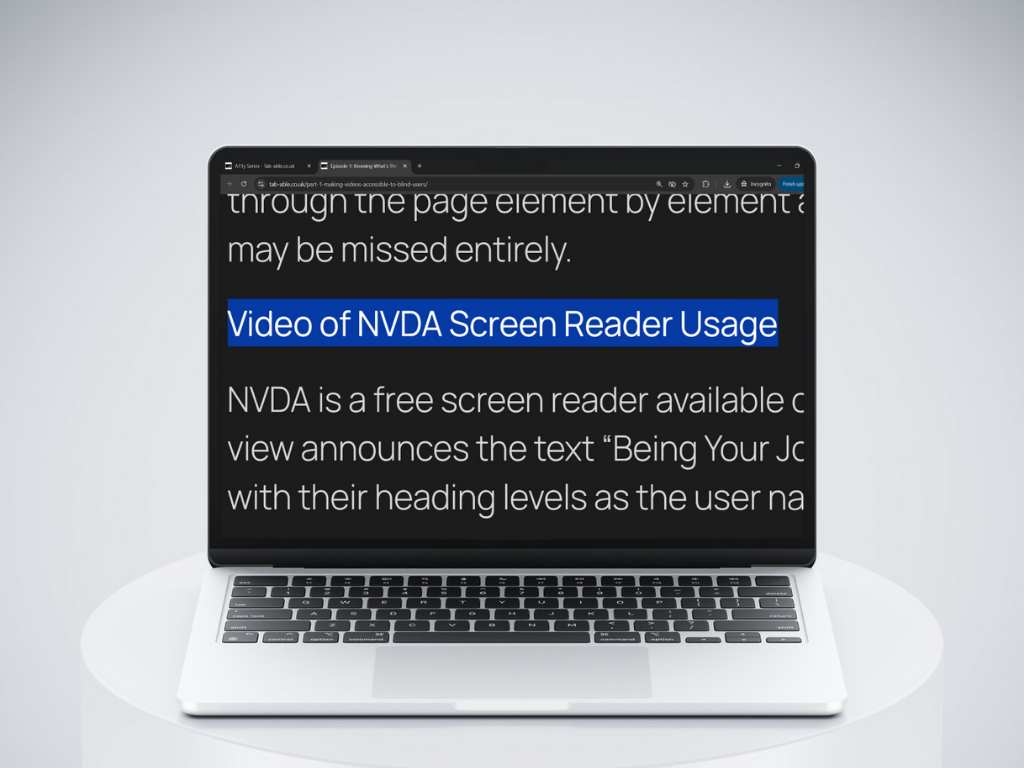
Video of NVDA Screen Reader Usage
NVDA is a free screen reader available on Windows. In this video, NVDA with Braille view announces the text “Being Your Journey…” and “Partner with Tab-able…” along with their heading levels as the user navigates each element.
Helping Blind Audiences Find Video
It’s good practice to identify the presence of a video in plain text. While it may seem redundant to sighted users, adding a phrase like “Video of” beside or above the video helps blind users recognise it. Placing this in a heading makes it clear that the text refers to the video itself.
You might prefer it even without a disability. Videos consume bandwidth and time, often just to deliver a summary.
For Developers and Curious Readers:
Making the <Video> Perceivable
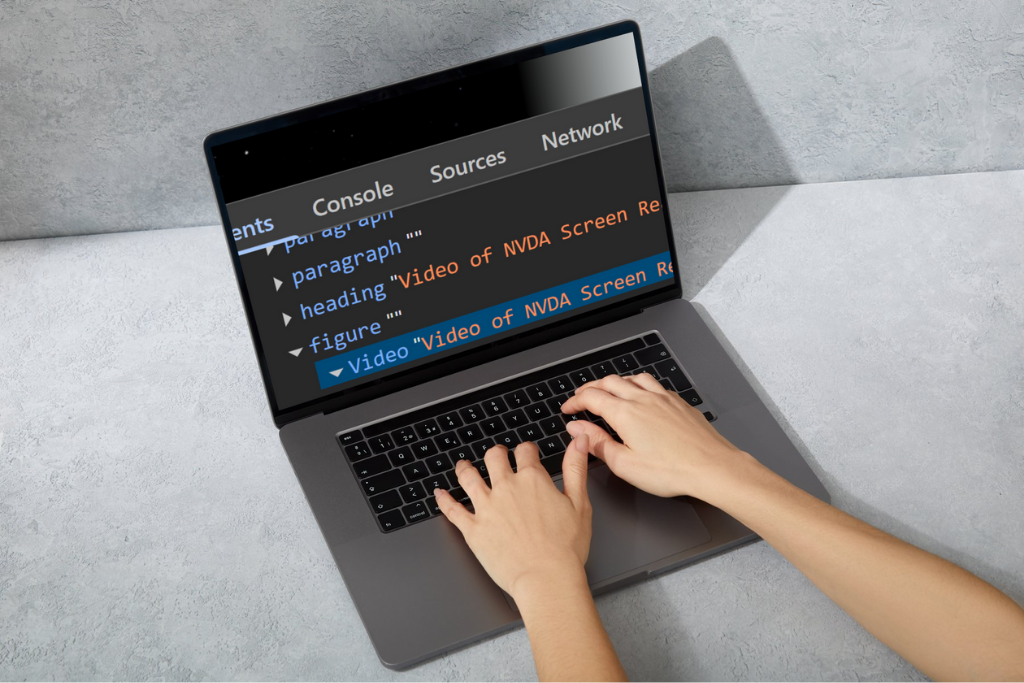
Most videos use the HTML <video> element, but it may not be announced by screen readers. To ensure blind users know a video is present, provide a descriptive text alternative in plain text.
This can be implemented using aria-labelledby or aria-label attributes. Use aria-labelledby when a visible label is present, as it also benefits sighted users.
HTML Example
<h2 id="video1-name"> Video of ... </h2>
<video aria-labelledby="video1-name" ...> ... </video>
JS Example
Here’s how you could implement the id and aria-labelledby dynamically with JS. This assumes that there is a prior heading to the video that has an identifying class of video-name.
document.querySelectorAll('.video-name').forEach((heading, index) => {
  // Ensure the heading has a unique ID
  if (!heading.id) {
    heading.id = `video-label-${index + 1}`;
  }

  // Use TreeWalker to find the next <video> element after the heading
  const walker = document.createTreeWalker(
    document.body,
    NodeFilter.SHOW_ELEMENT,
    {
      acceptNode: (node) => {
        return node.tagName === 'VIDEO' && !node.hasAttribute('aria-labelledby')
          ? NodeFilter.FILTER_ACCEPT
          : NodeFilter.FILTER_SKIP;
      }
    }
  );

  walker.currentNode = heading;
  const nextVideo = walker.nextNode();

  if (nextVideo) {
    nextVideo.setAttribute('aria-labelledby', heading.id);
  }
});
Or Build a HTML Web Component
Alternatively, you could build a HTML Web Component, following this approach on CodePen demonstrated by Kevin Bonnett.
Working With YouTube?
If you’re working with YouTube, add a descriptive title attribute to the <iframe>. If a heading is already present that summarises the video, set the title dynamically with JavaScript to avoid duplication.
WCAG Note
To meet WCAG Success Criterion 1.1.1 (Non-text Content), informative videos must include some form of descriptive identification. This requirement is distinct from providing alternatives to the video content itself, such as transcripts or audio descriptions.
If non-text content is time-based media, then text alternatives at least provide descriptive identification of the non-text content
The specific implementations shown in this episode are not required by WCAG. However, the principle of summarising and identifying videos for screen readers is. We encourage you to try our recommendations. They are designed to help you, and in turn help your users access your content.
Exceptions in WCAG
Text alternatives are not required for videos that are purely decorative. For example, a video used as a moving backdrop behind a banner section, intended only to enhance visual mood, may be considered decorative. You would need to assess whether that information is relevant to blind users.
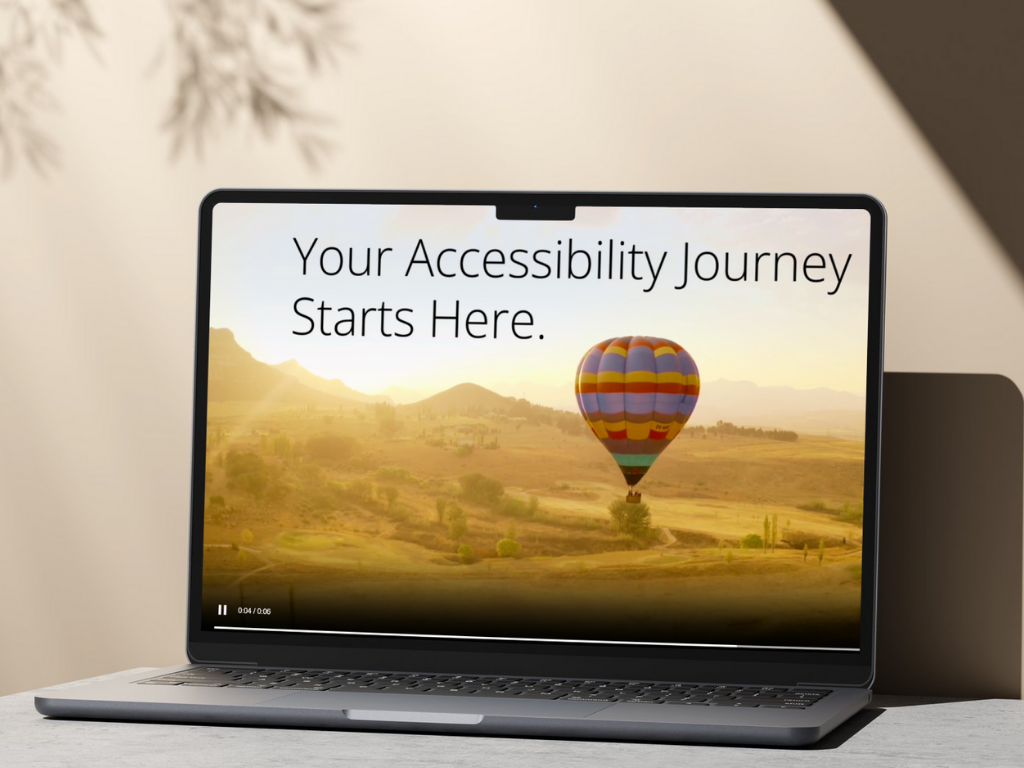
Even if WCAG does not require it, screen reader users may still benefit from knowing what the video contains or conveys. If the video includes controls, for example, they may come across these without knowing what the video is or what they are missing. That is why it is always best practice to describe mood-invoking videos wherever practical, so all users understand their purpose and content.
However, most videos convey information. When they do, they must be perceivable to people who rely on screen readers.
You’ve Met Principle Perceivable for Blind Users

Congratulations, you’re 20% there! Let yourself have a small win for meeting the Perceivable principle. Every step forward makes the web a little clearer, a little fairer, and a little more human.