From the Series: Video Without Vision
This episode explores how to keep blind users oriented so they know exactly what just happened and what will happen next.
This is for curious readers, as well as Accessibility Experts, Developers, and Testers.
You know that feeling when you click a link and land on a “404 – Page Not Found”? You were expecting something familiar, something useful. Instead, you’re somewhere else entirely, with no clue how you got there. That’s what it feels like for blind users when a video player suddenly shifts them away.
Fortunately, these experiences are covered by accessibility guidelines.
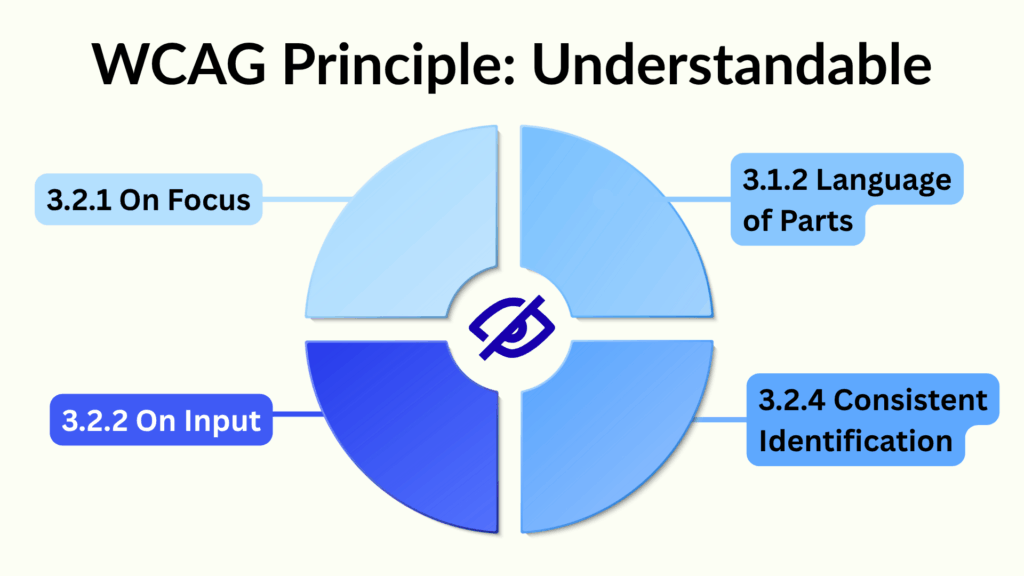
The WCAG Principle Understandable includes 21 success criteria. But when we focus specifically on video players and blind users, only 4 are generally relevant.
Level A
Level AA
Specific to Video Players
To be clear, this guidance relates solely to video playback and its controls. If your video is decorative and has no controls, and you’ve met all criteria from previous episodes, congratulations, your video is accessible to blind users.
For everyone that has a video player, we need to consider that:
- Controls do not initiate unexpected changes of context
- Controls responsible for selecting language must present those languages with the correct pronunciation
- Multiple videos should have the controls in the same order
No Sudden Detours from the Player
When a blind user moves through a video player, and when they activate the controls, there must not be an unexpected change of context. Controls should behave in a predictable way that matches their design pattern.

Not all blind users have zero vision. The goal is to keep them with the video, not move them away. If they’re moved, their screen reader starts announcing unrelated content. They lose their place, cannot reach other video controls, and struggle to return.
For basic controls like “Play,” “Mute,” or “Fullscreen,” the expectation is simple. They should do what they say without shifting the user somewhere else. If someone presses TAB to reach the control, they should land on it and stay there. That’s standard behaviour and covered in the previous episode.
More complex controls like menus, timelines, and volume sliders need the same care. Pressing ARROW UP to increase the volume should do just that. It should not jump to another control or reset the user’s position. Screen reader users may also use touch, so gestures must behave predictably too.
Accessibility Criteria for This Interaction
- Keyboard users can discover the pause and resume controls in a logical sequence.
- Keyboard users can open the more options menu without losing their place or context
- Keyboard users can discover and operate the timeline control without losing their place.
The Right Language for the Right Voice
This part isn’t about being left in the dark. But it does help when content speaks up in the right pitch.
If your video player offers caption options in different languages, each one must be pronounced correctly by screen readers.
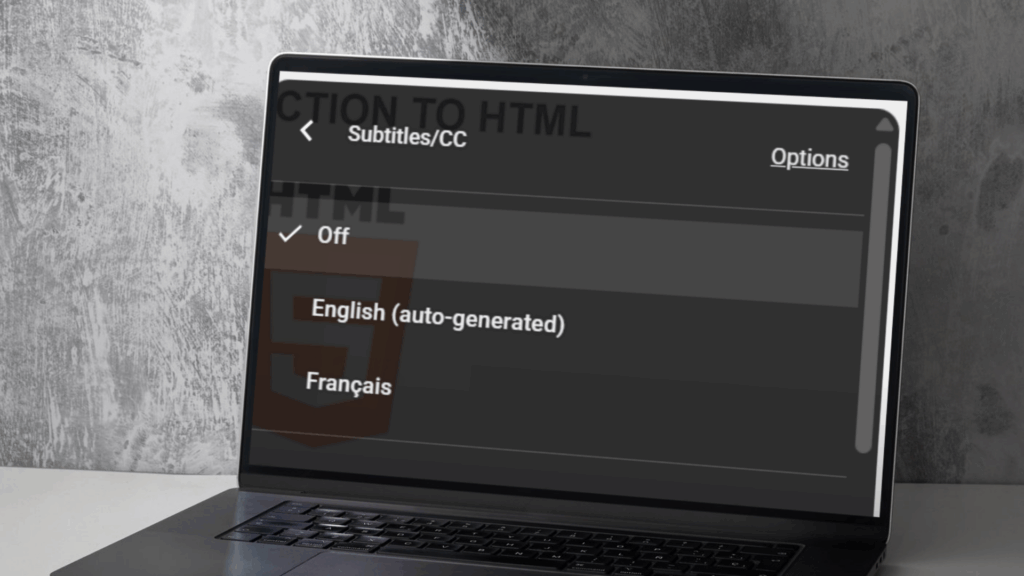
This matters most for streaming services with multilingual subtitles. For example, when an English-speaking screen reader user hears the option “Français,” it should be spoken with the correct French pronunciation. That way, the user can understand it and choose confidently.
This can be achieved by adding the lang attribute with a relevant language code as its value:
<div ... lang="fr"> Français </div>Keep the Layout Familiar
When videos appear on multiple pages, their controls must be identified consistently.
This means using the same accessible name every time. For example, a control labelled “Play” on one page should not be called “Continue” elsewhere.
This is easy to maintain when the video player is built as a reusable component.
Other Rules We Chose Not to Include
If you were expecting other success criteria to appear in this article, and they’re missing, we’d like to hear from you.
We’ve reviewed the following criteria and intentionally left them out. The reasons are explained below.
Avoid Interrupting the User Without Warning
We chose not to include the rule about interruptions in this article (2.2.4 Interruptions.) This rule is designed to protect screen reader users from unexpected updates that can disrupt their experience.
An interruption happens when something new is announced without the screen reader knowing. The screen reader may or may not pause its current speech. When it resumes, the user might find themselves further ahead in the content, with no clear way to return.
For example, on a stock exchange site, a live update might speak over a paragraph the user is reading. The screen reader continues silently, and when the update ends, it picks up again. The user has missed part of the content and cannot easily go back.
This issue does not apply in the same way to video adverts. These interrupt the video itself, not the screen reader. The screen reader stays in sync, and when the advert ends, the user resumes from the same point in the video.
Only Change Context When the User Asks
The rule about changes on request is designed to prevent unexpected shifts in context that users did not trigger (3.2.5 Change on Request.) We’ve already covered changes caused by keyboard focus or input. What remains are changes that happen without any interaction.
We do not believe video players introduce these kinds of shifts. Adverts may appear, but they play within the same player. A change in content is not the same as a change in context.
Adverts may also not be unexpected. Blind users are just as capable of understanding how streaming platforms use advertising as anyone else.
You’ve Met Principle Understandable for Blind Users

If you’ve followed all the criteria above, congratulations you’re 80% there. And if your video has no controls to begin with, that’s a valid approach too. Well done either way.