From the Series: Video Without Vision
Some video players look sleek and modern, but for blind users, finding the play button can feel like sitting in a luxury car with no idea how to turn it on.
In this episode, we explore how blind users navigate video players and what makes those players usable, predictable, and efficient. We’ll unpack six key rules that shape how well a player responds to keyboard control.
This episode is for curious readers, as well as Accessibility Experts, Developers, and Testers.
WCAG’s Guide to Getting in Gear
If you’ve followed the series so far, you’ll know Tab-able holds WCAG in high regard. Some critics say it’s too technical, too long, or not always relevant to the full spectrum of disabilities. But despite its limitations, WCAG remains one of the most practical tools we have for making digital experiences accessible.
Some blind users rely on their keyboard to operate video players. Every control must be discoverable, predictable, and fully operable without a mouse.
Under WCAG’s Operable principle, there are 6 rules that support this. Each one helps blind users navigate and control video content with confidence.
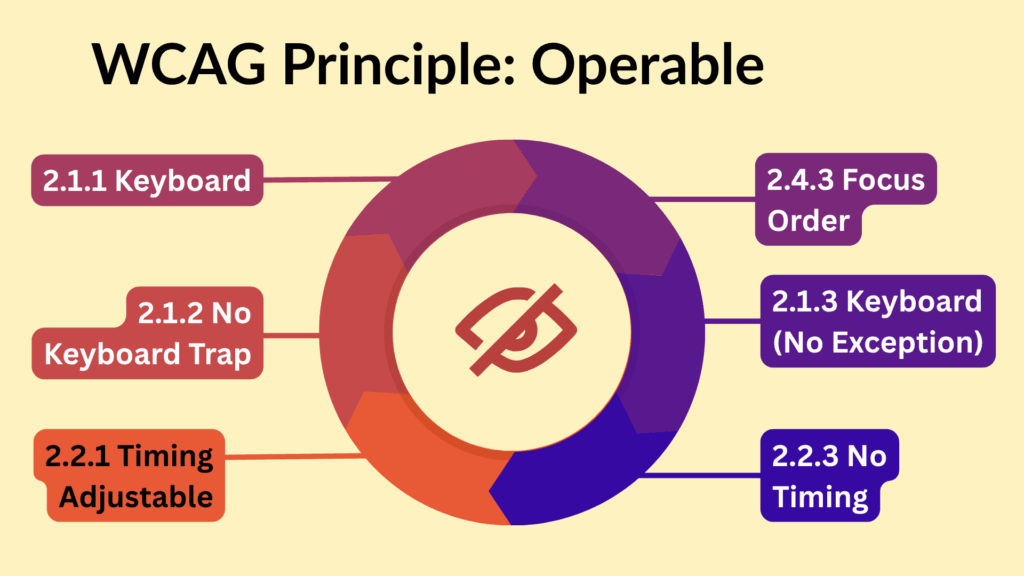
Level A
Level AAA
Use What Works or Reinvent Poorly
If you’re using the <video> element with the controls attribute you’ve already satisfied all six rules for keyboard operability. The buttons work with a keyboard. They don’t vanish. They’re easy to find. And they don’t trap focus
Make your life easier. Start with native controls.
If your video player uses custom controls, native behaviour is lost. You are now responsible for keyboard access, focus order, and more.
Keyboard Access for Every User
This means every button and slider must work without a mouse. If someone can see it, they must be able to reach it using only their keyboard. They must be able to:
- Get to the button, for example by pressing TAB
- Use the button, for example by pressing SPACE or ENTER
- Do both without strain or repetition
We will look at each type one at a time to help make sure they work properly in your video player.
Making Buttons Work with a Keyboard
For simple actions like pause, mute and fullscreen, use the standard <button> element. It works well for basic video controls and is easy to use with a keyboard.
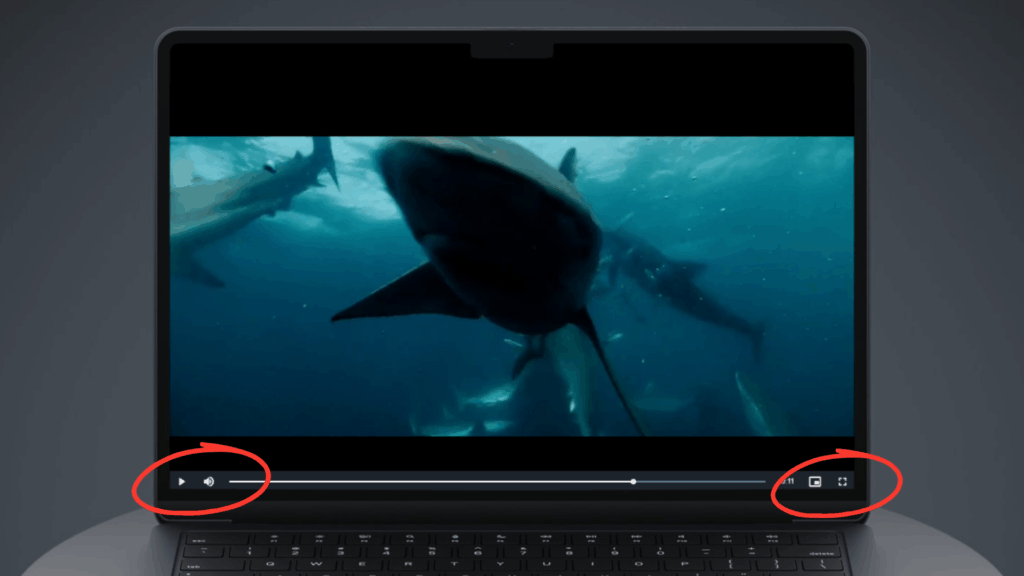
Simplified example of a standard <button> element:
<button> Play </button>Making Volume and Timeline Work with a Keyboard
For detailed timeline or volume controls, use the input range element.
Avoid using the slider role for now, as it does not work well with TalkBack on Android for screen reader users.
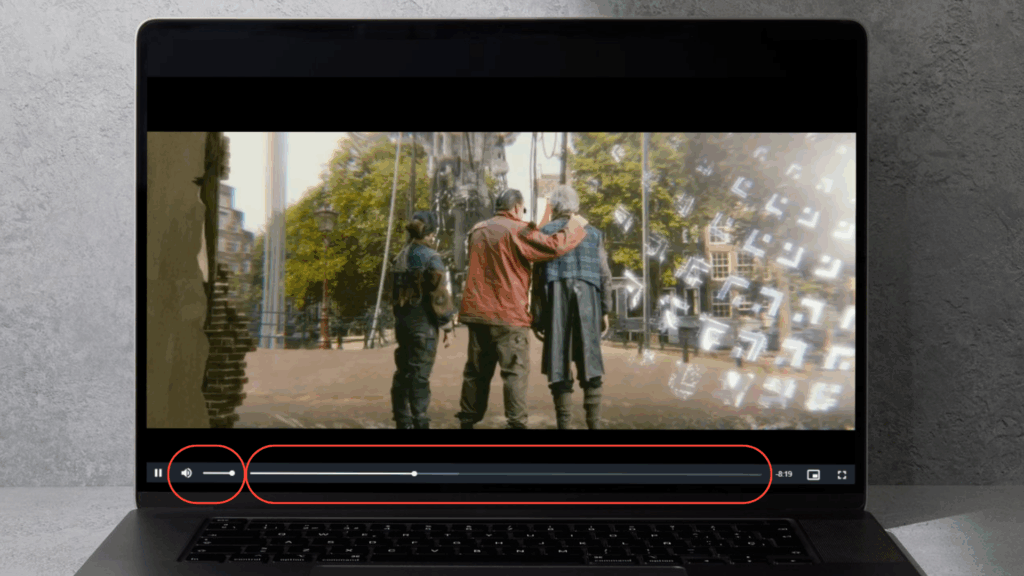
Simplified example of a standard <input type="range"> element:
<label for="volume"> Volume </label>
<input id="volume" type="range" min="0" max="10" step="1" value="8">
No Traps Allowed
Your buttons must not trap people using a keyboard inside the video player. They need to move in and out easily.
One common failure is when pressing TAB traps someone inside the video player. They can’t move forward and must reverse through the whole page to escape.
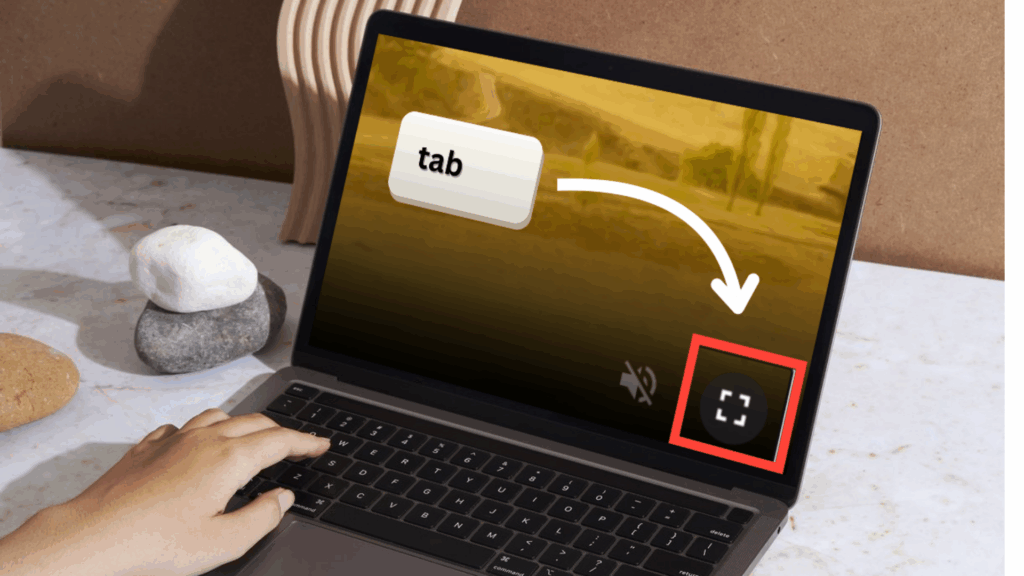
You usually meet this rule without extra effort if your HTML behaves as expected.
To test it, press TAB to move forward and SHIFT plus TAB to move backward.
You should be able to reach every button, enter the video player, and exit it without getting stuck.
Buttons Shouldn’t Play Hide and Seek
The goal is to make sure people have enough time to read and use the buttons. This only matters if your video buttons disappear.
Some users need more time than others. Assistive technology often slows things down, which means tasks take longer to complete.
You might be thinking, hang on, I’ve seen this on streaming sites like YouTube. And you’re right. But unless you’re building a streaming platform, would people expect your controls to vanish?
Video of a Player with Disappearing Controls
As a keyboard user moves through each control using the TAB key, the control disappears from view if they do not act immediately.
We are now demonstrating this inside our own video player, so please bear with the awkward interaction.
Streaming services handle this delicately. They hide controls without disrupting keyboard users. It’s clear they’ve put serious work into it.
But if you’re not careful, hiding controls can disorient keyboard users. They may not know how to get back to them.
The simplest fix is to avoid time limits altogether. Let the controls stay.
Let People Move How They Expect
Your buttons must be easy to move through in a way people expect. That usually means top to bottom, left to right.
If the order is slightly off, it might be fine. But if it becomes confusing, it can stop blind people from controlling the video properly.
To test this, press TAB and move through each button. Check that the order is clear and matches the layout.
You’ve Covered Operable

Congratulations, you’ve met WCAG’s Principle Operable and you’re 60% there. Next, we move on to making them understandable.