
Audience: This article is open to all readers, but may be especially useful for designers and developers.
We often see links like “Read more”. But do they help you understand where it’s going?
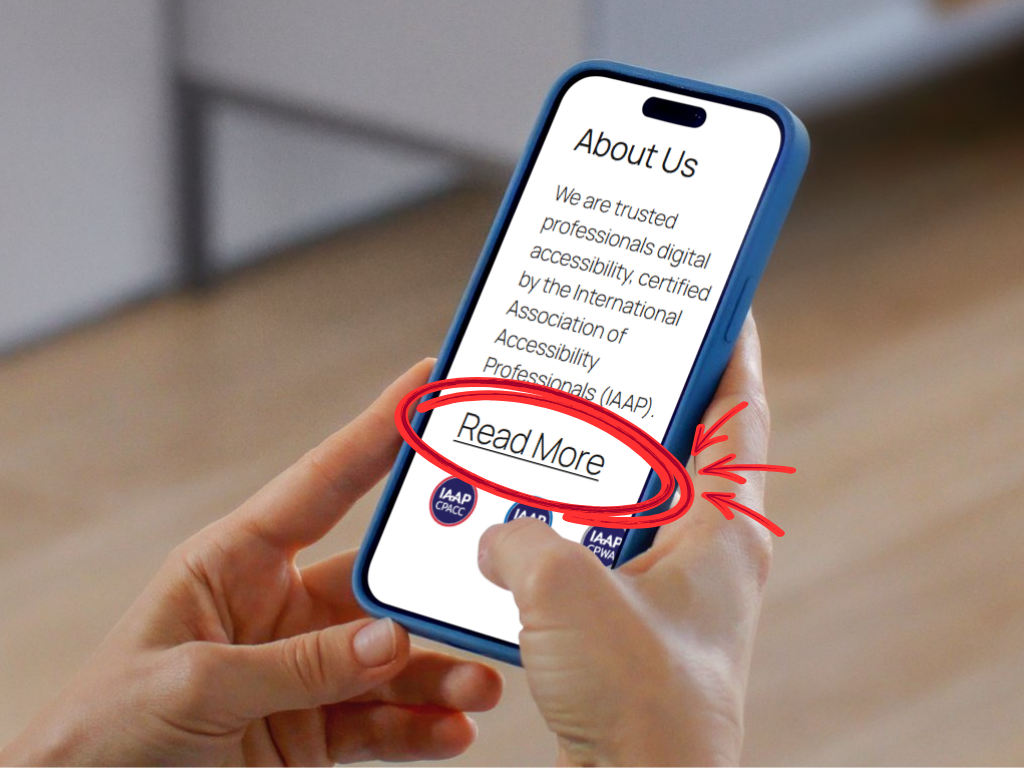
Undescriptive links affect everyone, but they can disproportionately impact people with motion, cognitive, or visual difficulties. For these people, clicking a vague link only to land on the wrong page causes confusion and unnecessary back and forth navigation.
To fix this, you have a couple of options:
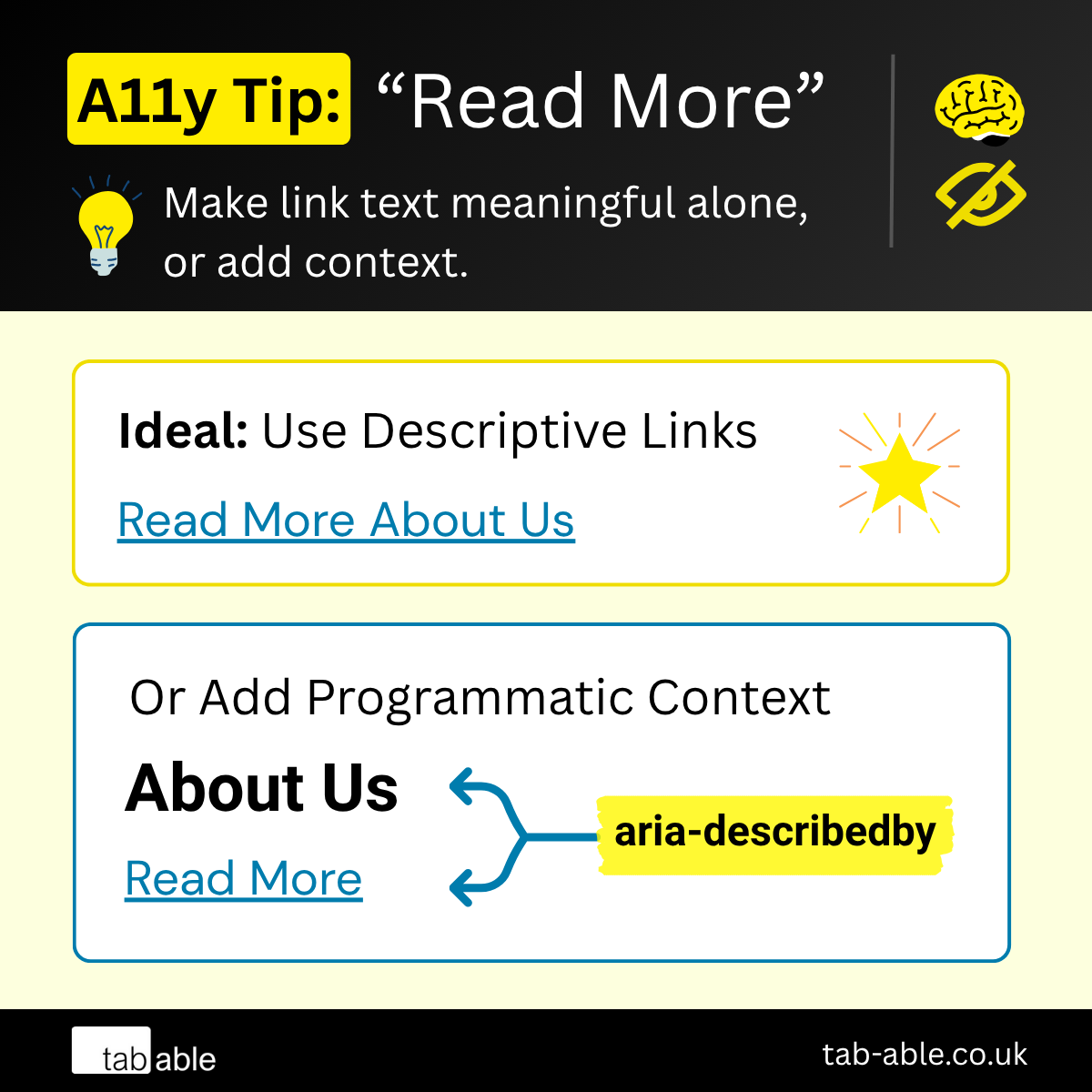
- Ideal: rework the link label so it makes sense on its own
- Alternative: add helpful context near to the link and programmatically associate it
Rework The Link Label (Ideal)
The best way to fix this is to change the link label so it makes sense on its own. For example, instead of “Read more”, say “Read more about Our Programme”. That way, people know what to expect before clicking.
This meets WCAG 2.2 Level AA & AAA:
Or Add Helpful Context
If there isn’t already context before the link, make sure to add it. A heading can help people with motion or cognitive difficulties understand what the link is for. That extra detail makes it easier to choose whether to click.
However, people with sight difficulties may still miss the full meaning if the link relies only on nearby text. To help, the link should be coded so that the context is clearly tied to it. This lets their assistive tools give the right information without extra steps.
This method meets WCAG 2.2 Level AA: SC 2.4.4 Link Purpose (In Context)
Use aria-describedby with an ID that points to nearby text. This links the description to the link so assistive tech can read both together. For example, a screen reader will read “Read more. Our Programme”.
Method 1: Add Description Manually
If you have access to the template code, you can add the following attributes directly, as shown below.
Simplified example:
<h2 id="context1"> Our Programme </h2>
...
<a href="#" aria-describedby="context1"> Read More </a>
Method 2: Use Our Script
If you can’t do this manually, for example if you’re a content editor, we’ve automated it for you via the script in our CodePen.
Either integrate the JavaScript from that CodePen into your content management system using a suitable tool, or ask your developers to do it for you. Then ensure:
- There is a descriptive heading before the link
- The link has the HTML class
described
Caveat: some screen readers do not have descriptions enabled by default. This means aria-describedby relies on users having that feature turned on to receive the added context.
Now your “Read more” links should be clear, accessible and WCAG compliant. This reduces confusion and improves the experience for all users.
We hope this article has helped you meet at least WCAG Level AA. If you found it useful, please share it and leave a comment below. Your feedback helps us improve and reach more people.