
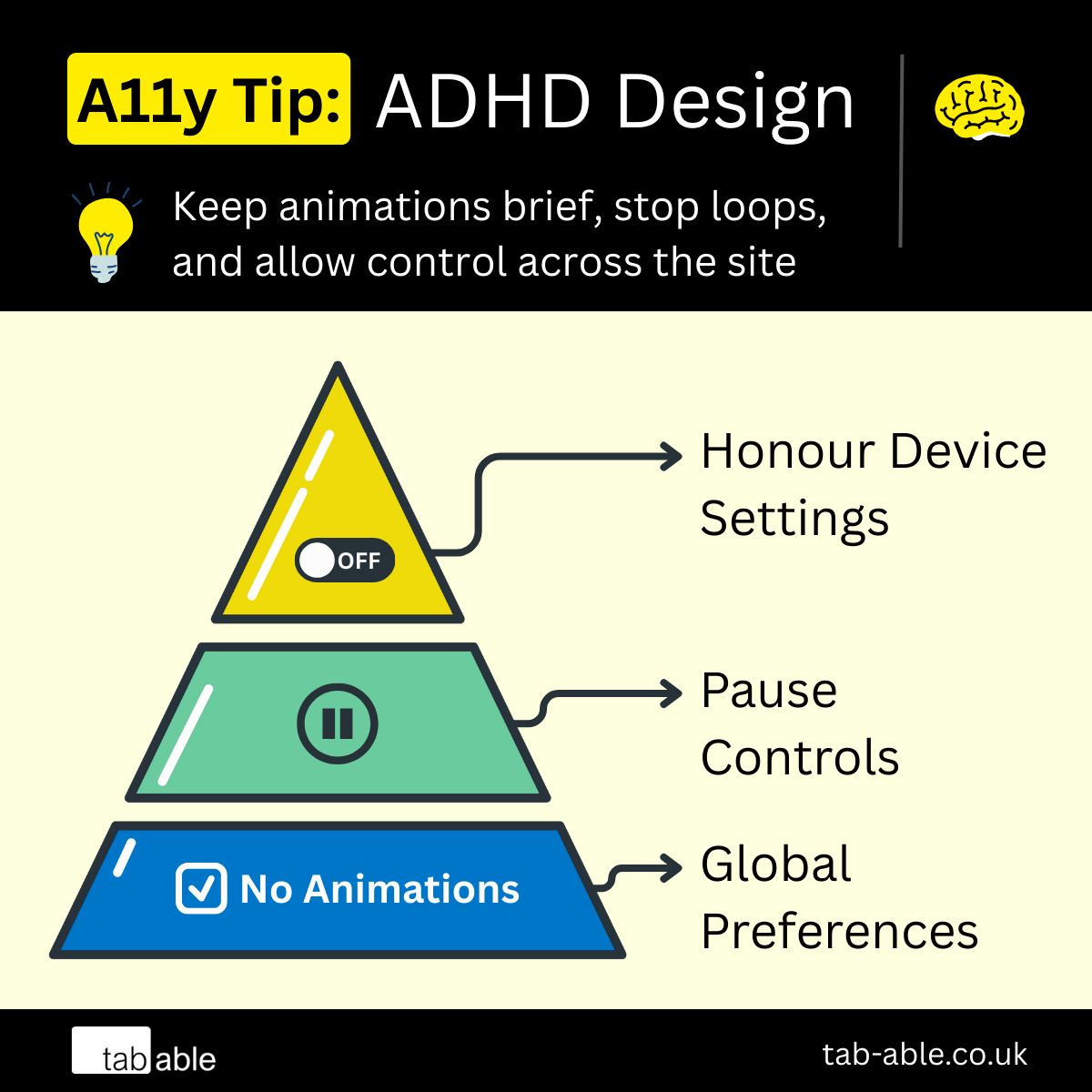
Audience: This article is open to all readers, but may be especially useful for designers, developers, business analysts, and testers working to improve accessibility for users with ADHD.
Awareness of ADHD is growing, but many digital platforms still fall short.
One common issue is animation. Continuous movement can make it difficult for people with ADHD to focus, creating a serious accessibility barrier. For example:
- Gifs that loop without pause
- Pulsating buttons or parts of the page that are designed to attract attention
- Looping carousels that rotate automatically
- Adverts with flashing or moving elements
Some animations, like loading icons, can be necessary. Pausing them may suggest the page has frozen. In many cases, users who trigger a loading state are not engaging with the rest of the page, so the animation is unlikely to distract them.
Tip: Limit or Remove Animations
Animations can add flair, but they should never come at the cost of accessibility. If they create barriers for disabled users, the best option is to remove them. Where removal isn’t practical, keep them brief and easy to control.
Limiting animations to under 5 seconds can improve usability for people with ADHD. This is especially helpful for attention-grabbing elements, such as those designed to guide users toward key content.
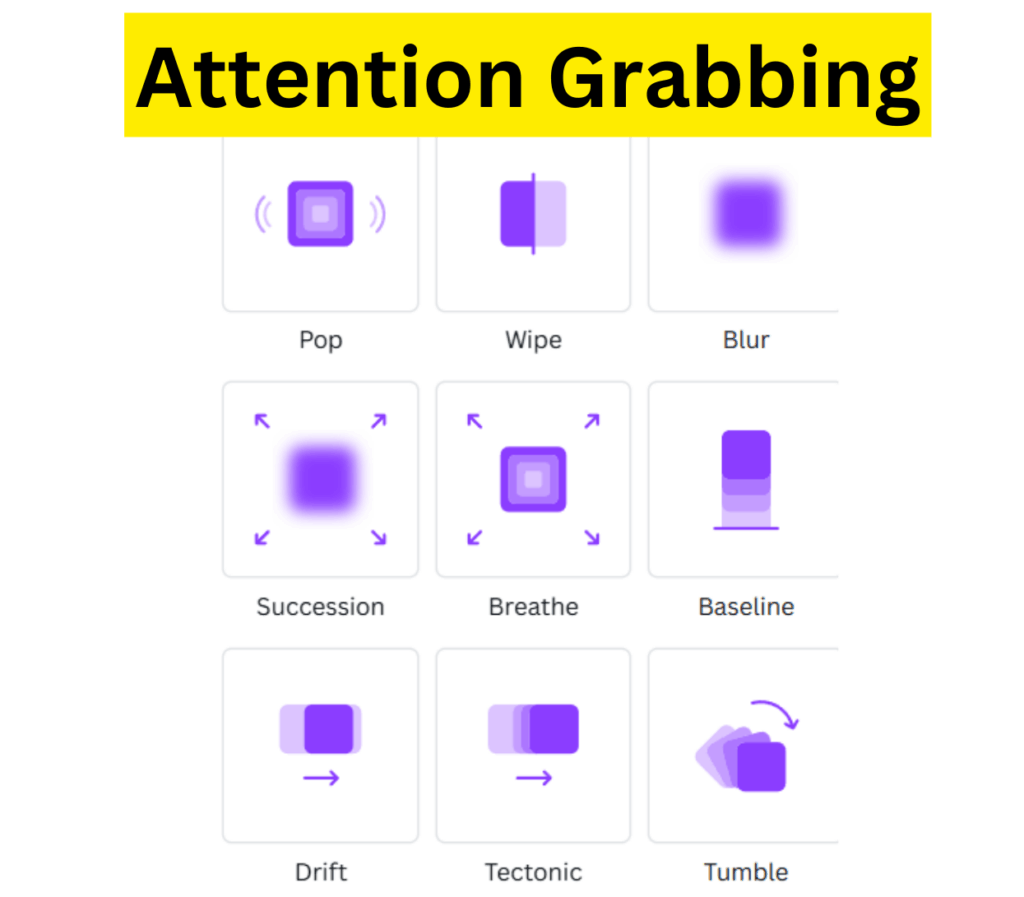
There are several methods that support people with ADHD, though some are more dependable than others. The most effective approach combines multiple techniques to reduce distraction and improve focus.
Method 1: Honour Device Settings
Respecting device settings is one way to support users with ADHD, though not all users will have these settings enabled.
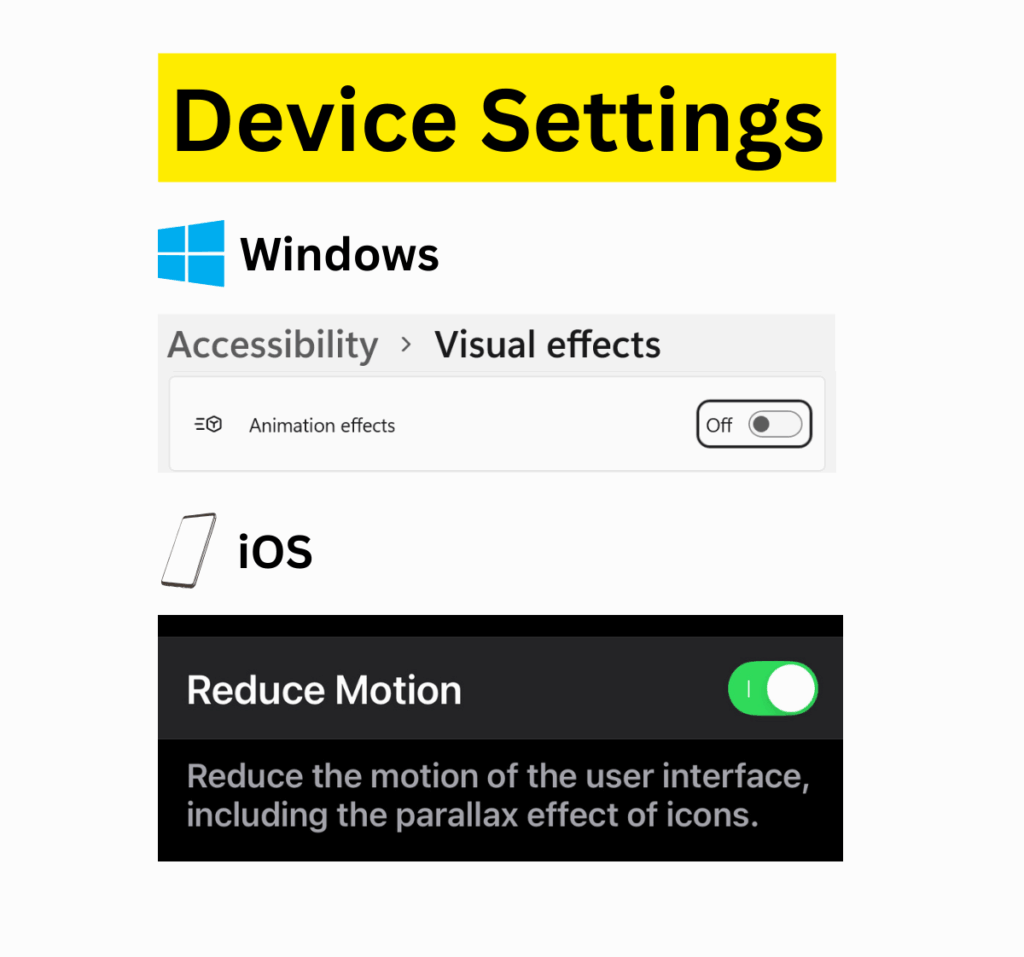
Websites can use the prefers-reduced-motion setting to detect when a user has asked for less movement. This does not stop animations. It only asks for them to be reduced.
However, if motion continues, even in a softer form, it may still cause problems for users with ADHD. Relying on this setting alone may not be enough.
Here is an example of how to use the reduce motion setting to turn off animations entirely:
@media (prefers-reduced-motion: reduce) {
  .animation {
    animation: none;
  }
}
Method 2: Providing Individual Settings
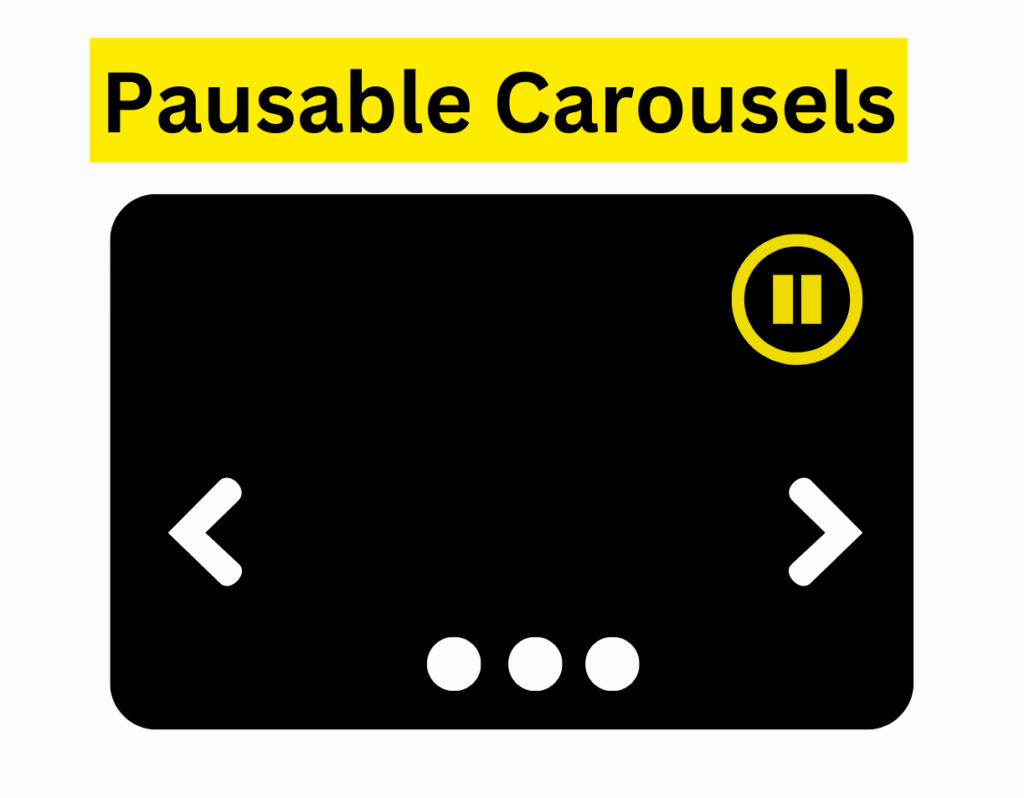
If animations are limited to a few areas, it may be simpler to offer pause and resume controls for those sections. This is commonly used with autoplaying carousels.
A standard HTML button can trigger scripts that pause the movement. For example:
Simplified Code Example:
<button> Pause Carousel </button>
Method 3: Providing Global Settings
If multiple animations are used, a global setting may be more effective. Like a Cookie banner, it can give users control over animation preferences across the site and be recalled after dismissal.
One approach is to include a checkbox within a dismissible banner shown on one or all pages.
This banner must be easy to find when an animation occurs. Users need to know it exists and understand how to reach it. Making that connection clear is a design challenge. It is difficult to achieve without placing a visible control on every animated element.
The banner should be easy to reopen, allowing users to change their preferences when needed. For example:
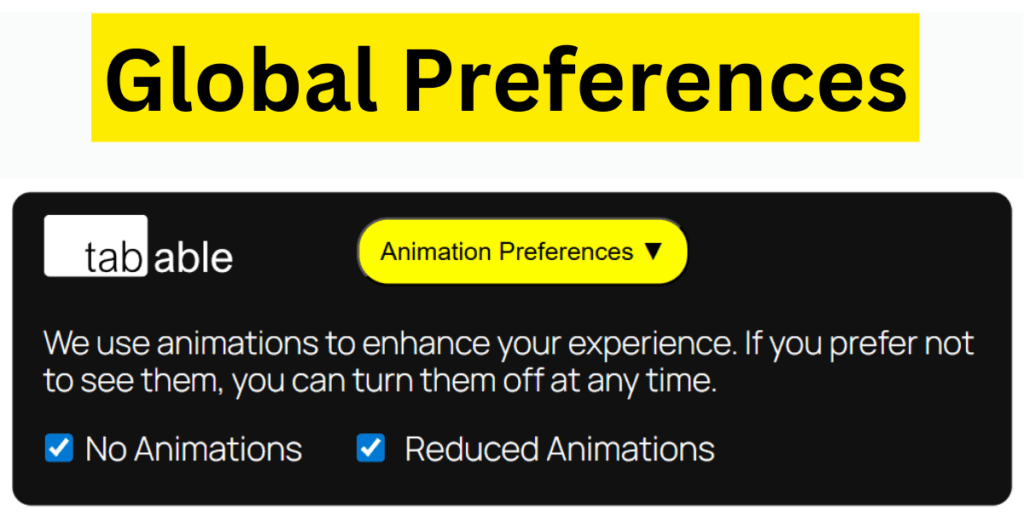
Simplified Code Example:
<section aria-labelledby="region1-name">
  <button id="region1-name" aria-expanded="false" aria-control="region1-content"> Movement Preferences </button>
  <div id="region1-content" style="display: none">
    <label for="control1">
      <input id="control1" type="checkbox">
      Animations
    </label>
  </div>
</section>
Technical note: the control to reveal preferences is placed within a region landmark to improve findability for those using screen readers.
Our Recommendation
Use all 3 methods where practical. Device settings are a good starting point, but not all users rely on them. Adding individual or global controls makes animation settings more predictable and accessible.
WCAG ADHD Requirements
People with ADHD are supported under WCAG Success Criterion 2.2.2 Pause, Stop, Hide.
To meet this criterion, one of the following must apply:
- The movement does not run continuously for more than 5 seconds
- The movement can be paused, stopped, or hidden
- Auto-updating content can be paused, stopped, or hidden
There is an exception for movement that is essential to understanding the content. If removing the movement would change the meaning, it may be considered essential.