Digital Accessibility Series Ep1 – Understanding What Users Face
This talk was delivered on 7 April 2026 by Andrew Nevins, Director of Tab-able. We're a digital accessibility consultancy specialising in WCAG 2.2 compliance.
All sources, studies, and evidence that support the points raised in the session can be found on the supporting evidence. It’s designed to help you explore the topics further, check the data, and follow up on anything you’d like to learn more about.
If you missed it and would like to catch up, email us at info@tab-able.co.uk. If there’s enough interest, we can look at running it again as a webinar.
Slide 1
Transcript
Thanks for attending our first episode of the Digital Accessibility Series, Understanding What Users Face.
This episode will be an introduction to digital accessibility.
Slide 2

Transcript
I’m Andrew Nevins, director of Tab-able, where I focus on practical, real-world accessibility.
We're a digital accessibility consultancy in partnership with TTC Global and their digital accessibility practice.
We help businesses create digital spaces where everyone belongs.
We do that with WCAG audits, Usability testing, Accessibility helpdesks, design reviews, and strategy.
Slide 3

Transcript
What you can expect from this talk is an understanding of:
- Who disabled people are
- How society frames disabled people
- What assistive technologies they use
- An example of barriers they hit
- And tips designed to help teams build in accessibility checks
Slide 4

Transcript
Disabled people are those of us who have a condition, injury, or difference that affects how we do everyday activities.
When the UK government talks about disabled people, it uses the definition from the Equality Act: You are considered disabled if you have a physical or mental impairment that has a substantial and long-term negative effect on your ability to do normal daily activities.
They include:
- Permanent disabilities, whether from birth, illness, or injury
- Temporary disabilities, such as migraines or broken limbs
- Those of us who acquire disabilities as we age
- Situational disabilities, such as being in a noisy environment while hard of hearing
Slide 5

Transcript
Disability is a spectrum that covers many types of difference, including:
- Cognitive disability
- Speech disabilities that affect how clearly people produce sounds
- Hearing issues from partial to full deafness
- Mobility needs such as people who can't use their hands
- Dexterity issues such as arthritis
- Vision issues such as those with limited to full vision loss
- Photosensitive conditions such as those sensitive to flashing content
Slide 6

Transcript
Cognitive disability is the most common type, covering areas such as:
- Learning disabilities like dysgraphia, which can make writing or organising thoughts on paper harder.
- Memory disabilities, such as dementia, can affect recall, planning, and day-to-day independence.
- Attention disabilities like ADHD can affect focus, switching tasks, or filtering distractions.
- Reading disabilities such as dyslexia can affect how quickly or easily someone processes written text.
- And language disabilities like dysphasia can affect finding words, forming sentences, or understanding speech.
Slide 7

Transcript
They represent 1 in 4 of us — around 16 million people in the UK.
That’s more than the population of major UK cities combined, including: London, Birmingham, and Manchester.
Slide 8
Transcript
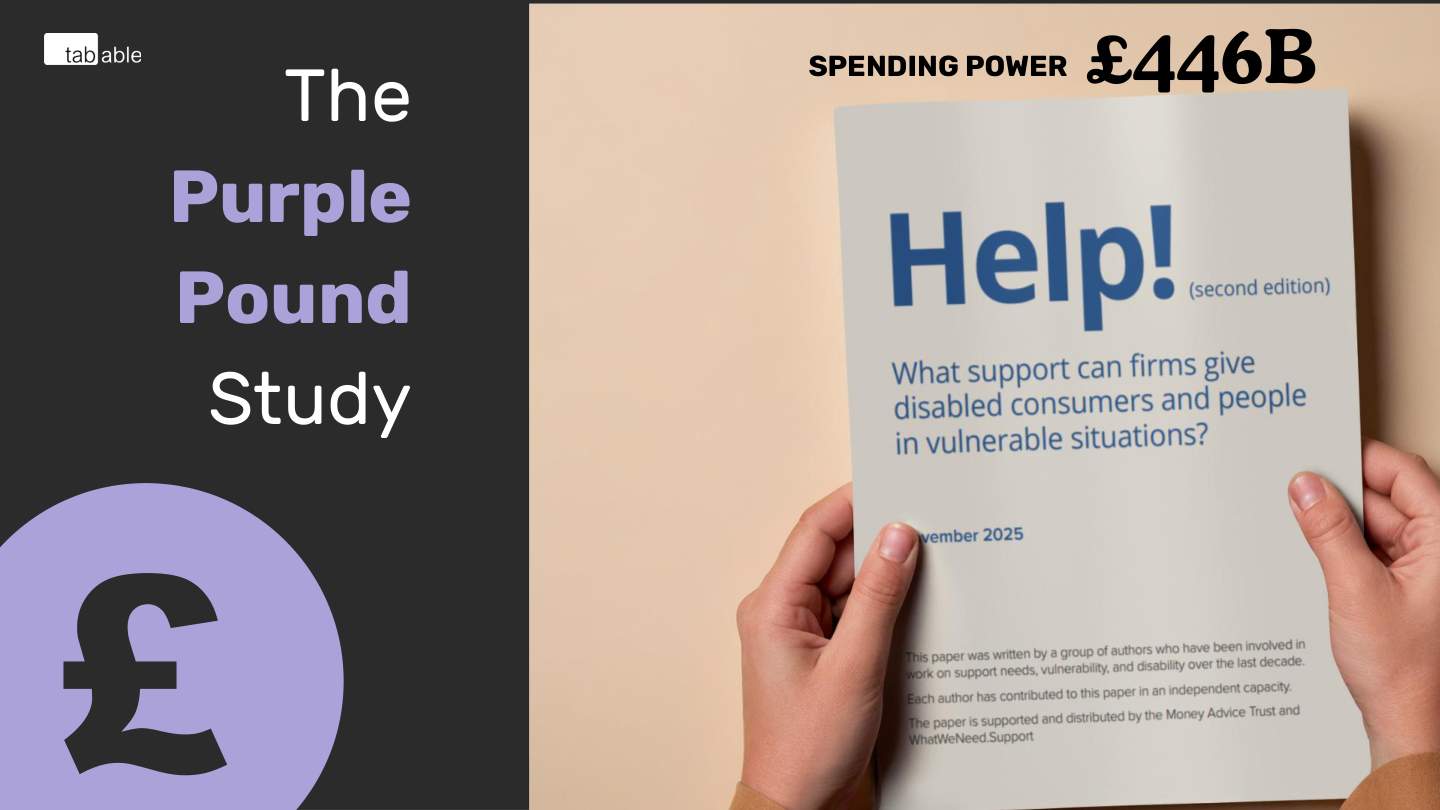
The Purple Pound study describes the spending power of disabled people and their households.
The University of Bristol updated this estimate in 2025 with their paper 'What support can firms give disabled consumers and people in vulnerable situations' to £446 billion.
We should treat that number with some caution.
It may not take into account:
- the cost of paid and unpaid care
- and the fact that more households now include disabled people
But even with those caveats, the spending power remains a powerful way to understand the economic influence of disabled people — and the scale of opportunity lost when products, services, and workplaces are inaccessible.
https://www.bristol.ac.uk/media-library/sites/geography/pfrc/documents/Help-Support-Needs-Guide-2nd-Edition-Nov-2025.pdf
Slide 9

Transcript
How Society Models Disabled People
Society has developed different ways of understanding disability.
These models shape how people think about disabled people, how decisions are made and how barriers are addressed.
I’ll walk through the main models next.
Slide 10

Transcript
The medical model treats disability as a problem located within the person. It frames the individual as the issue to be fixed or corrected.
This is where language like ‘normal people’ and ‘less able’ comes from, because the focus is on the person being different from everyone else.
To be clear, medical terms like disability or diagnosis are not the problem. The issue is the assumption that having a medical condition automatically makes someone the problem in society, rather than looking at the barriers around them.
Slide 11

Transcript
These are everyday phrases that come from the medical model. They treat the person as the problem.
'Confined to a wheelchair' or 'wheelchair-bound' is still used by newspapers to describe people with disabilities.
Or, ‘It’s normal, you’re overthinking it’ dismisses someone’s experience instead of questioning the environment.
‘You should be able to read that’ assumes the barrier is in the person, not in the design.
They’re small examples, but they show how easily society places the burden on disabled people instead of fixing the barrier.
Slide 12

Transcript
The charity model views disabled people as objects of pity who need sympathy, help and looking after.
We see this a lot in media and fundraising campaigns. The intentions are usually good, but the effect is that it reinforces stereotypes for the audience.
This model labels people as ‘brave’, ‘inspirational’, ‘in need’ or ‘vulnerable’. During COVID, that last one was used in ways that pushed disabled people even further out of society.
These are the kinds of words that make people feel pitied, talked down to or treated like they need saving.
Slide 13

Transcript
These are everyday phrases that come from the charity model. They assume disabled people always need help from someone else.
‘Ask a family member to help’ puts support on relatives instead of fixing the barrier.
‘Pop into the branch and we’ll assist’ assumes people should rely on staff rather than accessible design.
‘Customer services can support vulnerable users’ frames disabled people as fragile or dependent.
Slide 14
Transcript
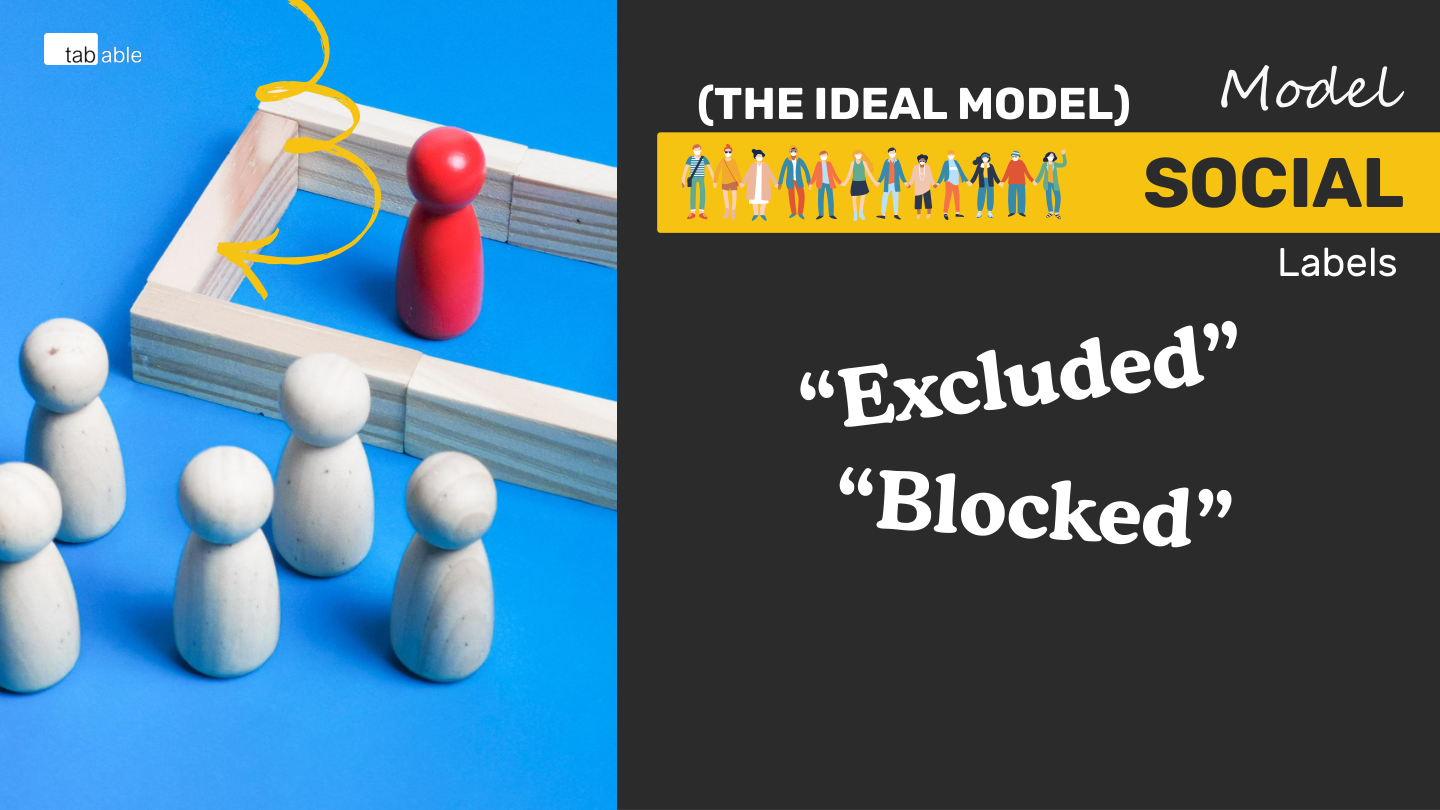
The social model says disability comes from barriers in society, not from the person.
It recognises that people are fully capable, but blocked, excluded or overlooked because the world isn’t designed with them in mind.
Slide 15

Transcript
These are everyday phrases that reflect the social model, which is why it’s considered the ideal approach:
- ‘They need to make this easier.’
- ‘It’s badly designed.’
- ‘This isn’t accessible.’
All of these shift the responsibility away from the individual and onto the setup or design. They recognise that the barrier is external, not within the person.
Slide 16

Transcript
Here are some physical examples of the Social Model in action.
Dropped kerbs were introduced so wheelchair users could move safely between the pavement and the road. Now they benefit everyone — people with pushchairs, travellers with luggage, delivery workers and anyone who prefers a smoother route.
Many train stations now use level boarding, where the platform and train floor meet without a dangerous gap. This was designed to remove a barrier for wheelchair users, but it also makes boarding safer and easier for older people, parents with buggies and anyone carrying bags.
Low-floor buses that lower to the kerb were created to make boarding accessible for wheelchair users. Today they help everyone — from people with shopping to parents with prams to anyone who finds steps difficult.
Slide 17

Transcript
Closed captions were created so Deaf and hard-of-hearing people can access spoken content and the meaningful sounds around it. They also help everyone in everyday situations — like when you’re in a quiet space without headphones, or in a noisy environment where listening isn’t possible.
Voice commands like ‘Hey Siri, turn up the screen brightness’ were created for hands-free accessibility, but they’re now used by drivers, cooks, parents with full hands, and anyone who wants quicker interaction.
Reader modes in websites strip out adverts and clutter to support people with cognitive or visual barriers — and they make pages cleaner, calmer and easier for everyone to read.
Audiobooks were originally an accessible format, and now they’re used by commuters, multitaskers, language learners and anyone who prefers listening.
Slide 18

Transcript
Now that we’ve seen how inclusive design benefits everyone, it’s important to look at the tools disabled people use. These tools make the remaining barriers visible.
Slide 19

Transcript
Here are some examples of assistive technologies, and you’ll see that many disabilities make use of similar tools.
Limited mobility
These tools provide alternative ways for people to interact with devices, beyond a mouse, keyboard or touch.
- Switch devices
- Mouth stick
- Voice input
Low vision
These tools provide enhanced visibility and alternative ways of viewing content for people with low vision.
- Screen magnifier
- Screen reader
Blind
These tools provide non-visual ways for blind people to access and navigate digital information.
- Screen reader
- Braille display
Cognitive
These tools offer support for organising information, communicating, and staying focused.
- AAC (Augmentative and Alternative Communication)
- Screen reader
Slide 20

Transcript
A mouth stick is used by people with limited mobility to interact with a touch device, keyboard or mouse.
This is an example of a mouth stick. This particular one isn’t as lightweight as a typical mouth stick would be, but it’s great for demonstrating how they work.
- The red section is the biting point held between the teeth.
- The end of the stick can hold different attachments depending on the task.
- For example:
- a stylus tip for tapping on touchscreens
Here’s a video of a more sophisticated mouth stick called the TubusOne. It uses small puffs of air to tap on the screen, making it a kind of hybrid input method that requires very little physical effort compared to a traditional mouth stick.
Slide 21

Transcript
This is a switch device. They come in lots of colours and sizes, and they’re very sensitive, so they can be used by a wide range of people, including those with limited dexterity.
In someone’s setup, pressing the switch is treated just like tapping the screen or clicking a mouse.
Because a single button can only do one action, you need an additional layer to access the full features of a website — like scrolling.
Here’s a demo of an iOS device with Gliding Cursor, a feature of the switch accessibility setting.
You’ll see a horizontal scanning line move across the screen. When you press the switch, it stops the line, and then a vertical line appears. Pressing again creates crosshairs on the exact point you want to select.
Slide 22

Transcript
Now I’m going to show some of the accessibility features built into iOS. These are different from assistive technologies — they’re usually more granular settings that change how the device behaves, so people can tailor it to how they prefer to see, hear or interact with content.
Limited mobility
- Switch Control
- Voice Control
- Eye Tracking
- Head Tracking
Low vision
- Zoom
- Hover Text
- Display & Text Size
Blind
Deaf
- Screen Reader
- Audio Description
- Captions
Cognitive
- Reduce Motion
- Colour Filters
- Read & Speak
Slide 23

Transcript
All of these tools matter, but for today I want to focus on two things: interactions and perspectives — because most digital barriers fall into one of those.
Slide 24

Transcript
You don’t need to learn every assistive technology. There are hundreds of devices and tools out there, and they all look different, but the important thing is that almost all of them boil down to the same three interaction points. If you remember these three, you remember the whole landscape.
Those three interactions are: a mouse click, a keypress, and a gesture tap.
Everything we’ve looked at today maps back to one of those.
- A mouth stick creates taps.
- A switch button can act as a keypress or a tap.
- Braille displays send keypresses.
- Screen readers use keypresses or taps.
- Voice control triggers taps or clicks.
Once you see that pattern, it becomes much easier to understand how people interact with digital content.
Slide 25
Transcript
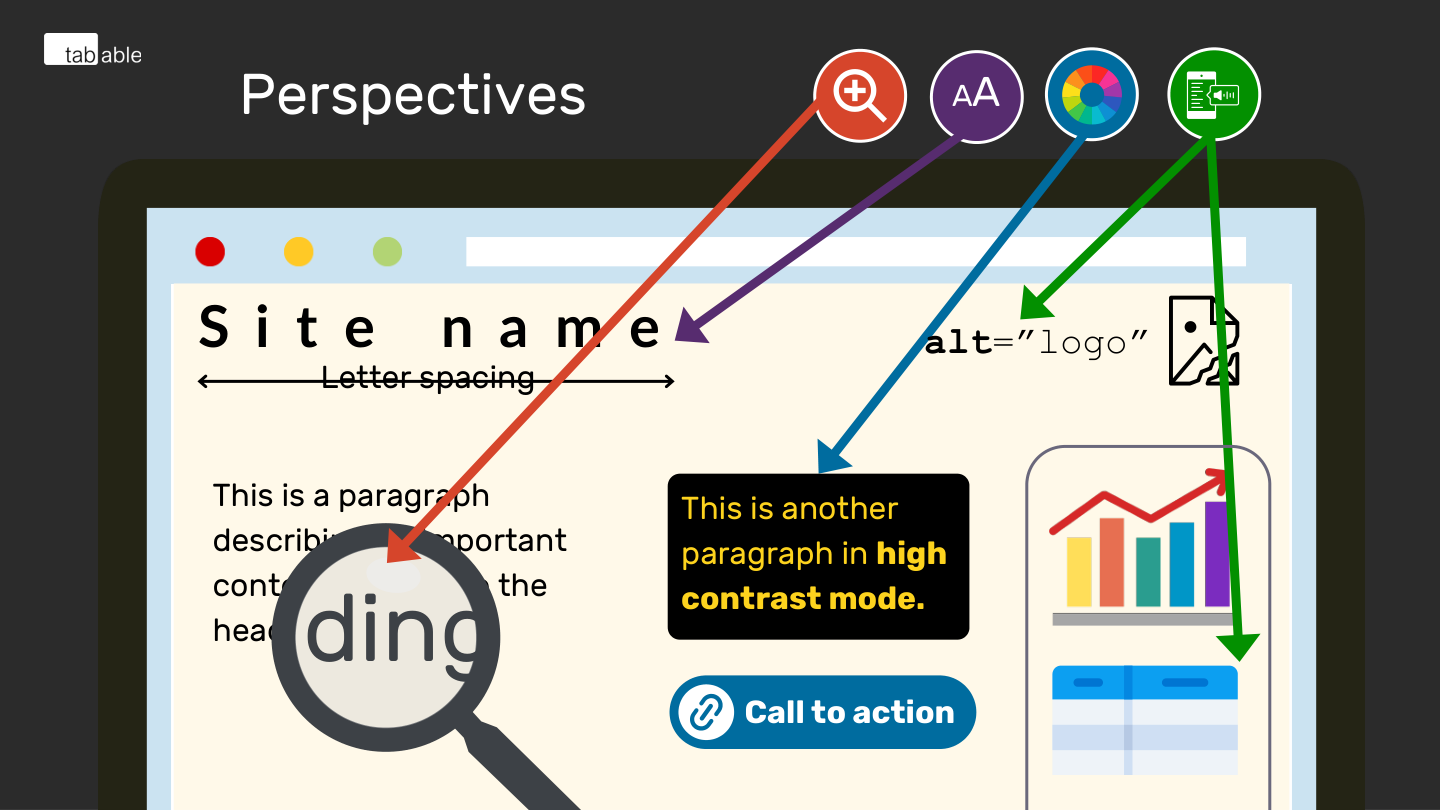
Similarly with perspectives, we just need to think about how people perceive information and structure. The same website can feel completely different depending on someone’s needs.
- Low vision users may be magnifying content or zooming into the page.
- People with cognitive disabilities may be changing letter and word spacing for their reading preferences.
- People with low vision or cognitive disabilities may be changing colour schemes for reading, such as using high contrast yellow on black.
- Blind screen reader users will be relying on alternatives to visual media such as logos and charts in order to understand the same information.
So perspectives are really about how people take in information, and how flexible your content needs to be so everyone can access it.
Slide 26

Transcript
Digital barriers don’t always prevent task completion, but they create friction, frustration and inefficiency.
Here are three common examples we see in real products.
Slide 27

Transcript
For this first example, I’m going to show a carousel that uses next and previous controls represented as arrow icons.
At the default zoom level, those arrows are visible and everything looks fine. But as soon as a user zooms in, or even just views the page on a smaller screen, the arrows disappear.
And once they’re gone, there’s no way to move through the other slides of the carousel.
We see this pattern a lot when carousels are designed desktop-first. They rely on the big space available on a laptop or desktop, and when that space reduces, teams often remove features like the arrow controls and assume people can just swipe instead.
That becomes a barrier for anyone who can’t perform swipe gestures — including people with mobility disabilities using switch devices, mouth wands, head pointers, or screen readers.
The content is technically there, but the controls to reach it aren’t.
Slide 28

Transcript
For this next example, I’m going to show an issue that affects people with low vision or cognitive disabilities who increase the text size for reading comfort.
This is from the Met Office app when viewing the weather. At the default text size, we see clear summaries like ‘Rain, 10% at 4am’.
But when we increase the text size using the Accessibility setting ‘Larger Accessibility Sizes’, and set it to the second-largest option, then reopen the Met Office app, that summary information becomes obscured.
It gets truncated with an ellipsis — so instead of ‘Rain, 10% at 4am’, we get ‘Rain, 10% at…’.
While the full information is available further down in the detailed weather breakdown table, the summary itself is not.
So people who need larger text don’t get to benefit from the same quick-glance information that fully sighted users do.
Slide 29

Transcript
For this final example, I’m going to show an issue that affects people with cognitive disabilities such as ADHD.
This recording is from a website that claims to be an accessibility expert. Their heading and text are overlaid on top of a looping video background.
The video continuously animates a cloud-morphing motion, and there’s no way to pause it.
As a result, it’s difficult to read the text because the movement behind it never stops. And that same movement becomes distracting when reading other parts of the page.
Because we don’t know how people are viewing websites in their own custom setups, that animation could prevent some users from reading any of the content at all.
In digital accessibility, this kind of issue is considered significant. A non-pausable animation like this would prevent the entire page from meeting accessibility guidelines.
Slide 30

Transcript
Now that we’ve seen three examples of barriers in real products, the next few slides look at how teams can avoid creating issues like these in the first place.
These are practical, everyday practices that help teams build barrier-free experiences from the start.
Slide 31

Transcript
Design is one of the earliest places where barriers can be stopped before they form. And many of you are already doing parts of this. What I’m going to show are the design practices that make it much harder for barriers to slip through later on.
Slide 32

Transcript
Design mobile-first and then scale up. It forces you to think about how everything fits in the smallest, most challenging space, and it makes you pay attention to reading order. Remember that carousel example where the controls disappeared? We can avoid that kind of thing when we plan for the smallest layout first.
Slide 33

Transcript
Design defensively, as though your text will wrap onto a new line at some point. If we expect that, we can plan for people who change their font size, letter spacing, line spacing, or word spacing. And it also future-proofs your designs for multilingual sites, where text naturally expands.
Slide 34

Transcript
Avoid continuous animation, especially when people are trying to read text.
If something is moving the whole time, it pulls attention away and becomes a barrier.
Always give a clear pause mechanism for anything that autoplays, or pause it automatically after about five seconds and let people resume if they want to.
There are cases where continuous animation is fine — like a loading spinner. If that froze, people would assume the page has crashed. But for anything else, keep movement controlled and optional.
Slide 35

Transcript
Developers play a huge role in whether barriers make it into a product. These practices are some of the simplest ways to catch issues early and prevent the kinds of problems we saw in the examples.
Slide 36

Transcript
Axe-core linting is just code linting that checks for accessibility rules — things like whether an image has an alt attribute. It’s free, and you can download it from Deque Systems. It works with React, Angular, Vue, HTML and Markdown. You can run it in your IDE, use it as an API, or integrate it directly into your pull-request pipeline so it runs automatically when someone raises a merge request.
https://marketplace.visualstudio.com/items?itemName=deque-systems.vscode-axe-linter
Slide 37

Transcript
Developers also have the opportunity to review the Accessibility API directly in your browser’s DevTools. This shows you the properties that assistive technologies rely on. If something’s wrong here, it’s almost certainly going to cause an issue for screen reader users. It’s a really quick way to spot underlying problems without having to fire up a screen reader — it makes your accessibility testing much faster.
Slide 38

Transcript
Run a quick keyboard test. You’re already checking whether your features work with mouse clicks, so just do the same sense-check with a keyboard. Use TAB to move forward, SHIFT+TAB to move back, SPACE to activate buttons, ENTER to activate links, and the ARROW keys to move between things like radio buttons. It’s a fast way to spot barriers that mouse users never see.
Slide 39

Transcript
Testers also have a big role in stopping barriers getting through. Just like with developers, this is all building on what you already do — you’re already checking behaviour and layout, we’re just adding a few accessibility checks into that process.
Slide 40

Transcript
A really useful check for blind users is to look at the reading order. That’s just the order information is presented in — for English sites, that’s usually left-to-right and top-to-bottom.
One of the easiest ways to check this is on a mobile device. Because there’s so little space, the interface tends to flatten and linearise into its natural reading order.
Yes, developers can spoof the order, but in most cases what you see on mobile is what screen reader users get too.
What we’re trying to avoid is content appearing in strange or reversed orders for them. And sometimes that happens because a desktop layout needed a certain visual arrangement, but there wasn’t time to rework the underlying HTML order.
Mobile testing exposes that straight away.
Slide 41
Transcript
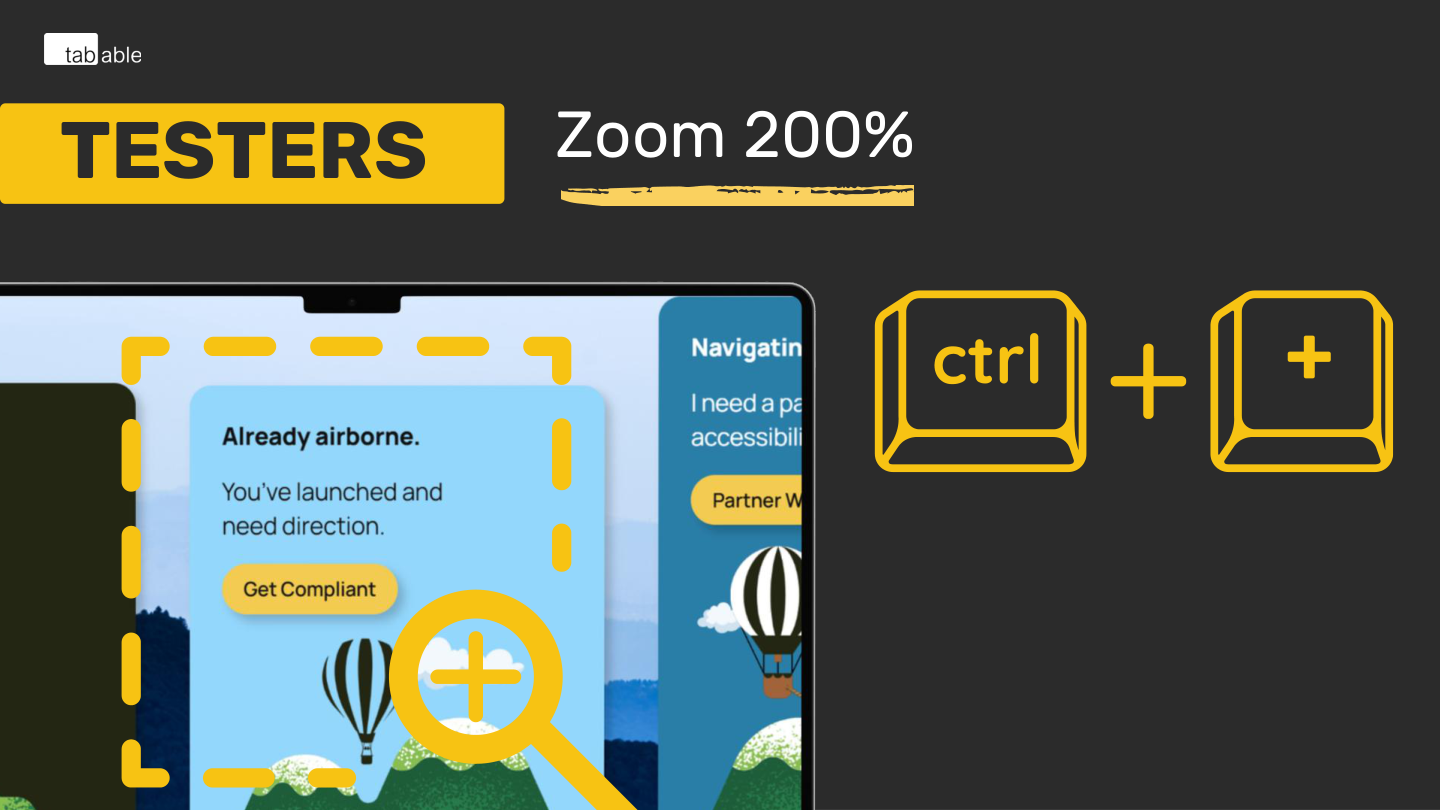
A quick way to test for low-vision accessibility is to zoom your laptop to 200% using CTRL and PLUS.
This helps you catch missing information or functionality that slips between your responsive breakpoints.
People with low vision often use at least 200% zoom to make smaller text readable, so this gives you a fast, realistic sense of their experience and helps you spot issues early.
Slide 42
Transcript
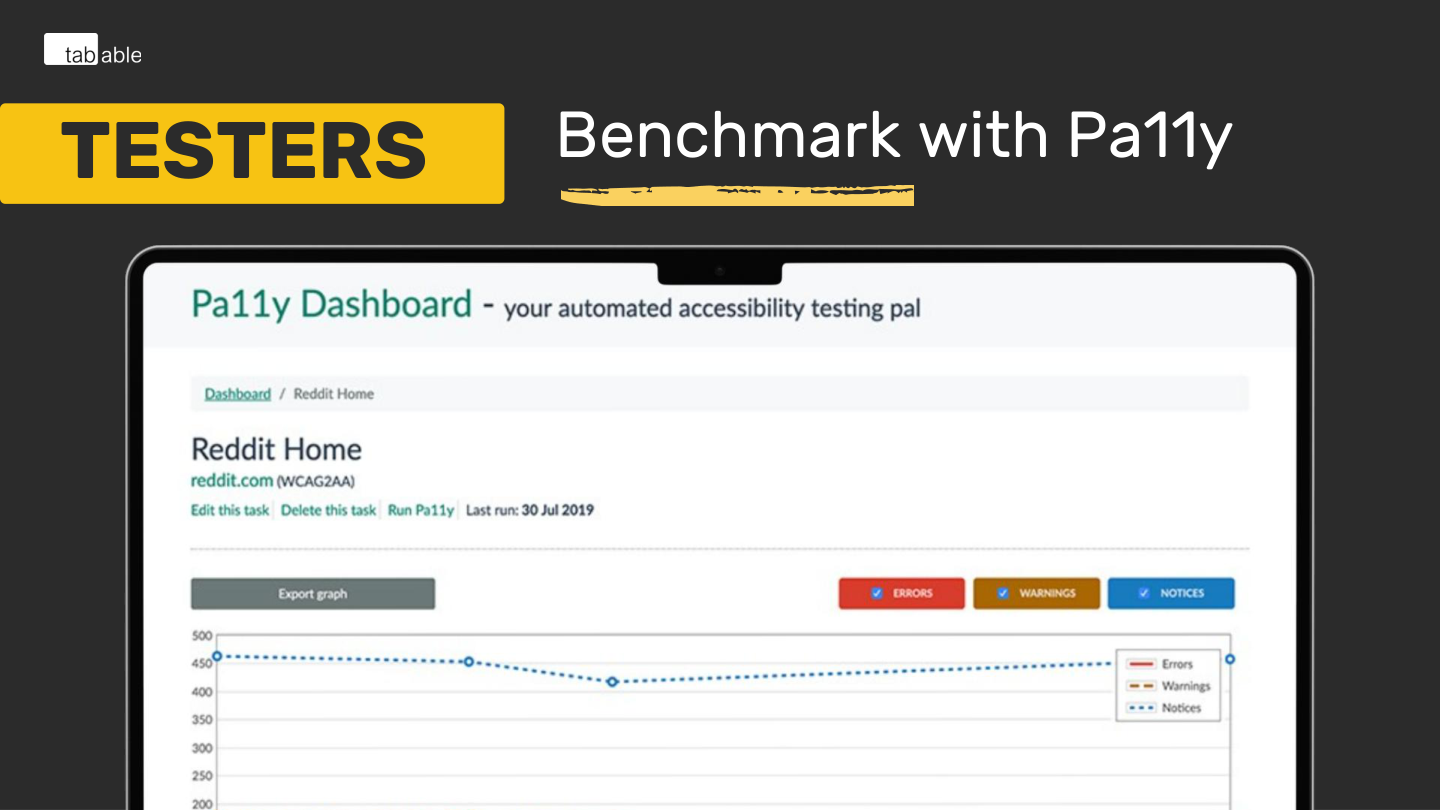
Pa11y runs accessibility tests on your webpages.
Pa11y itself is more developer-focused, but it also comes with Pa11y Dashboard — which is completely free.
Testers can use Pa11y Dashboard to benchmark accessibility progress over time.
You can configure it to automatically run tests at whatever interval you want, so it becomes a simple way to keep an eye on regressions in dev environments.
Automated tests have limited coverage, but they’re extremely useful for tracking regressions and trends.
All you need is Node.js and MongoDB to set it up.
https://github.com/pa11y/pa11y-dashboard?tab=readme-ov-file
Slide 43

Transcript
And finally, avoid accessibility overlays.
Accessibility overlays are add-on widgets that claim to “fix” your website automatically.
They’re marketed as a quick win, but they are not disability-friendly and often introduce new barriers.
These tools go all the way back to the 90s with products like ReadSpeaker and BrowseAloud, which bolted text-to-speech onto websites.
If a feature is genuinely needed by users — like text-to-speech, high contrast, or larger text — then it would have to exist on every website they visit, not just yours.
And that's the key point. Users already have their own assistive tech — screen readers, magnifiers, browser zoom, colour settings, voice control — all configured to their needs.
And crucially: overlays create a false sense of progress.
They make teams feel like they’ve “done accessibility,” which delays the real work of fixing the actual code, content, and design.
That complacency is the real harm — it convinces organisations that their sites don’t need to be accessible right now.
So, overlays don’t solve accessibility. They just get in the way of doing it properly.
Slide 44
Transcript
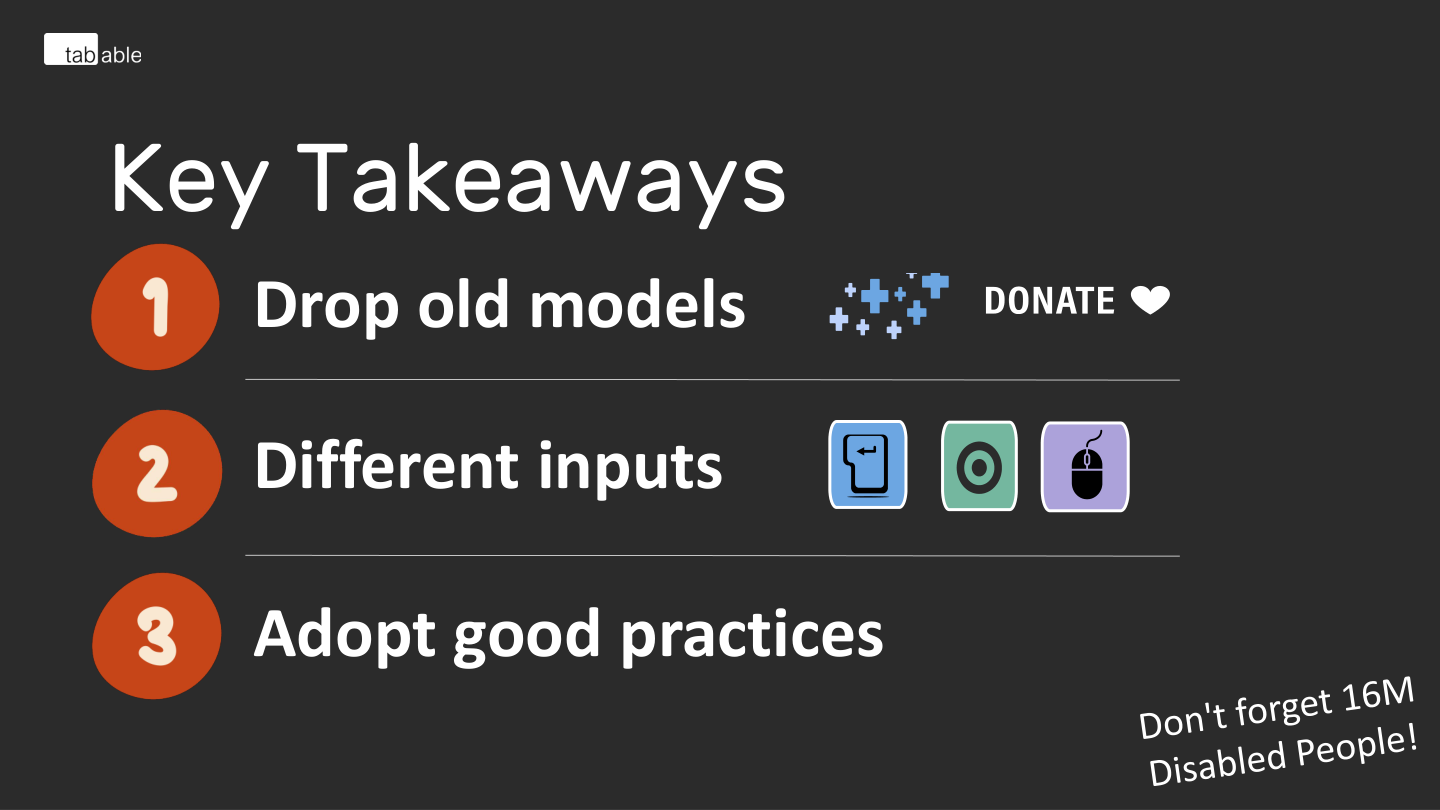
Key takeaways:
- Drop old disability models such as the medical and charity models
- Remember the 3 input types that all assistive technologies boil down to: keyboard, touch gesture, and mouse
- Adopt good practices in your everyday to get started on embedding accessibility into your processes
And don't foget: there are 16 million people with disabilities!
Slide 45

Transcript
That brings us to the end of this introduction to digital accessibility.
I hope you now have a clear sense of what digital accessibility is, and why removing barriers matters so deeply to the dignity and independence of people with disabilities.
And I hope some of you now feel equipped with the tools and confidence to get started — even small changes make a real difference.
Thank you for listening.
You can find supporting links through this QR code.
My contact details are:
- Andrew Nevins
- Director
- info@tab-able.co.uk
We do:
- Usability testing
- WCAG audits
- Accessibility strategy